

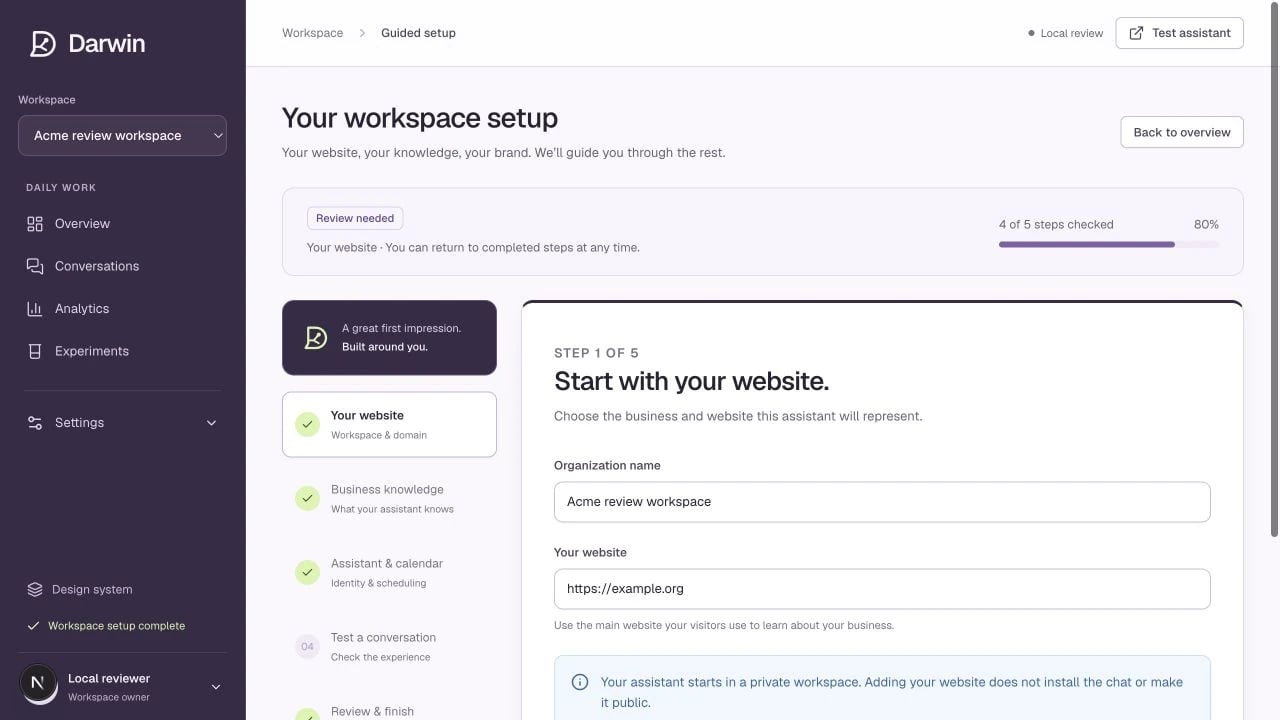
Guided setup keeps the five steps and saved progress together.
Screenshots use a demonstration workspace. Your data, plan, and activation status may differ.
You will need your website URL, a public team scheduling link, the information visitors usually ask for, and access to add a script to your website.1
Create your account and choose a plan
Start from the pricing page or choose Start for free on the website. Verify your email, confirm your plan, and add a payment card. Every plan requires a card. Origin has no monthly fee and includes your workspace’s first five booked meetings free.Account setup and payment details →
2
Complete guided setup
Open the guided setup and work through the five steps: your website, review your assistant, connect your calendar, test a conversation, and review and finish. Save each step before moving on. You can leave and return to your saved progress.Find your way around →
3
Give Darwin useful source material
Enter your website and select Prepare my assistant. Darwin finds useful pages and prepares your business context, voice, and design for review. Save the draft to import your selected pages, then add more sources later in Settings → Knowledge.Let Darwin prepare your assistant →Import and maintain your knowledge →
4
Make the assistant yours
Choose its name and voice, review the opening message, and use Widget appearance to match your colors and design. Paste your public booking URL in Scheduling.Customize the design →
5
Test before going live
Ask a pricing question, a question about product fit, and a question your website does not answer. Then try booking a meeting. Confirm the result in your scheduling provider. A mock preview does not validate real AI responses or booking verification.Run a useful test →
6
Install and verify
When live activation is available, allow your website domain and copy the embed from Settings → Installation. Publish your website, verify the installation, and test in a fresh browser session.Installation guide →
You are ready when the widget appears on the intended pages, answers using your information, opens the right calendar, and records activity in the correct workspace.