

Find it in Darwin Settings → Widget appearance Open this screen ↗
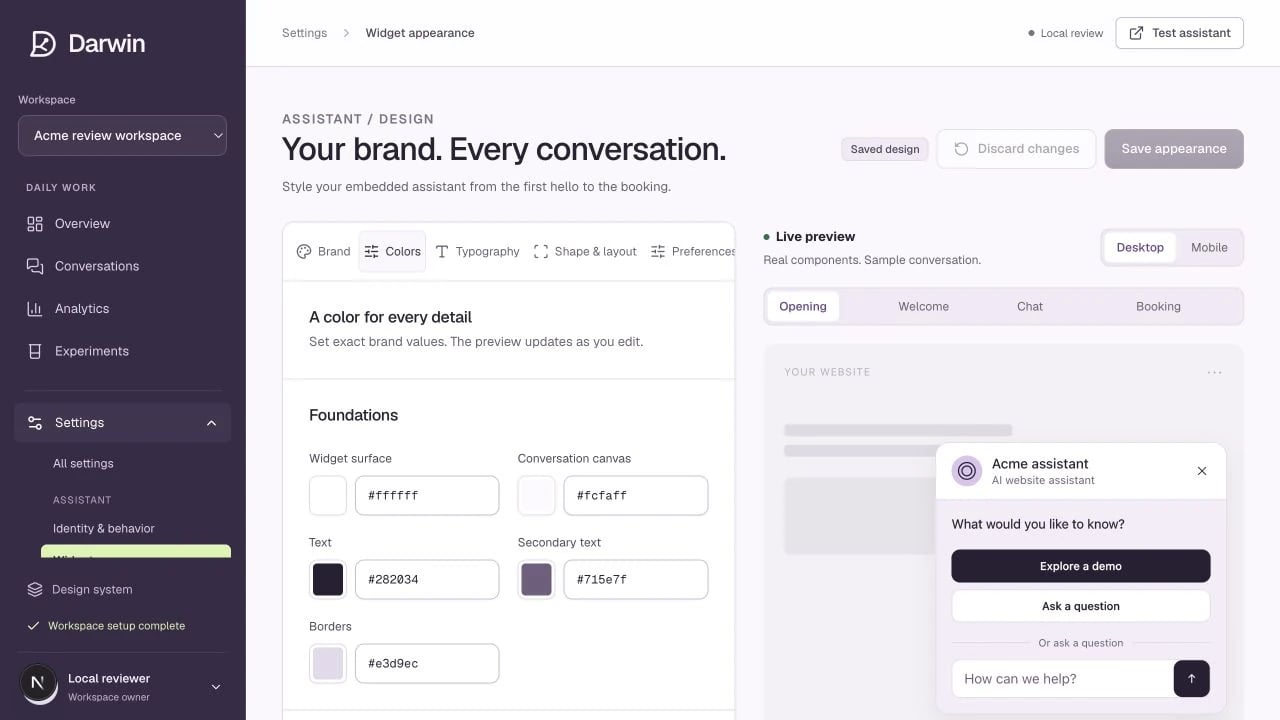
Exact color controls and the live widget preview share one appearance editor.
Screenshots use a demonstration workspace. Your data, plan, and activation status may differ.
The appearance editor changes the embedded chat, not your Darwin admin workspace. The preview uses the same widget components as the embed, with a sample conversation.1
Choose a starting point
Open Brand and choose a preset. Pick an avatar style: brand symbol, custom image, initials, or no avatar. Upload a PNG, JPEG, or WebP image, or use a public HTTPS image URL. Choose whether the launcher uses a chat symbol or the avatar.
2
Set your colors
Open Colors. Edit the surfaces, text, buttons, header, messages, input, teaser, launcher, links, and feedback colors. Enter six-digit hex values for exact brand matching. Review any contrast warnings before saving.
3
Match your type and shape
In Typography, choose a font family or supply an HTTPS font URL, then set text size, weights, line height, and spacing. In Shape & layout, adjust corners, borders, shadows, panel size, launcher size, position, and screen offsets.
4
Review all states
Switch between Opening, Welcome, Chat, and Booking, then compare Desktop and Mobile. Check that long messages remain readable and that the launcher does not cover your website’s important controls.
5
Save and verify on your site
Select Save appearance. Previewing, importing, or choosing a preset changes a draft until you save. Reload your website after saving and check the live widget in a fresh session.
Useful controls
Origin and Adapt retain Darwin branding. Evolve and Apex allow its removal. Your plan enforces this even if an imported theme asks to hide it.
Export theme saves a reusable JSON file. Import theme and Reset to Darwin update the draft; review and save to apply them. The appearance preview does not create real leads, conversations, or bookings.