

Find it in Darwin Meetings → Requests Open this screen ↗
Every request a visitor sends through one of your forms is saved with its conversation, and it goes out by email and to any tool you connect. Answers to Book a meeting’s questions are saved the same way.
See every request
Open Meetings and select Requests at the top.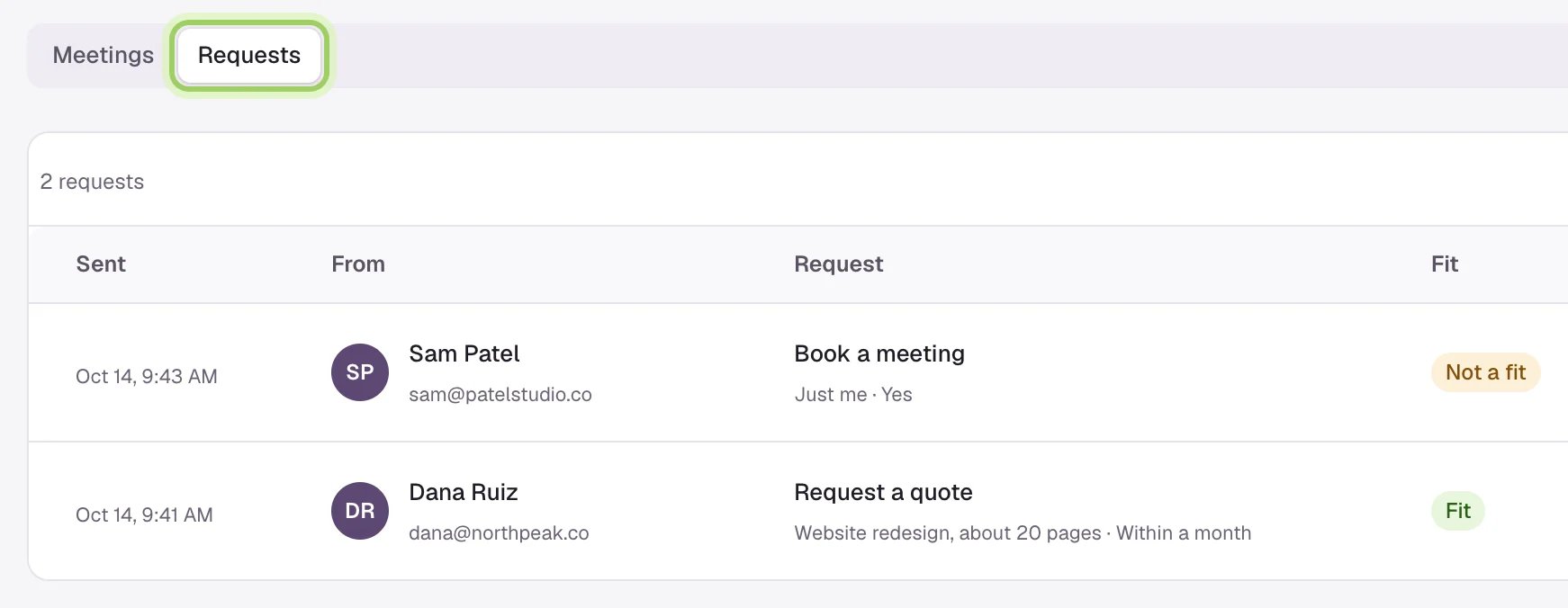
- Sent: when the visitor sent it.
- From: their name, email and phone, if they gave one.
- Request: the form’s name and the first two answers.
- Fit: Fit, or Not a fit when an answer ruled them out.
- Billing: Counted, Not billed or Removed. See How requests are billed.
- Conversation opens the chat the request came from.
Read a request beside its conversation
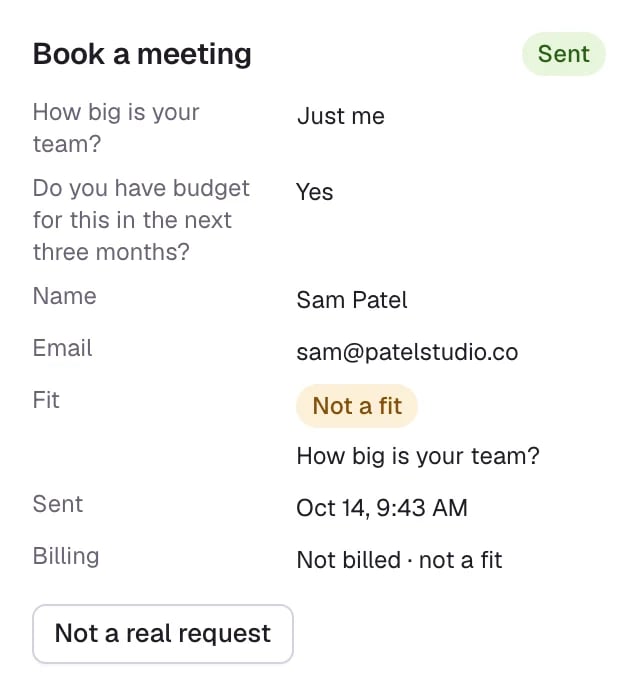
In Conversations, a conversation with a request shows the form’s name as a badge in the list, and “Request a quote sent”, for example, at the top. The panel on the right has the request:- each question and its answer
- the visitor’s name, email and phone
- Fit, with the question that ruled them out
- when it was sent, and its billing state
Get each request by email
Darwin emails each request, with every answer and whether the visitor was a fit:- Your team: everyone with Bookings and requests turned on in Notifications. It’s on to start.
- Extra addresses: up to five per form, such as sales@ or a shared inbox. Add them under Send answers to → Email on the form. See Build an outcome.
Send requests to other tools
Darwin doesn’t add requests to a CRM on its own. Use Zapier or a webhook for that.
Good to know
- Removing a form doesn’t remove its requests. They stay here and in Conversations.
- Requests sent from the Agent Studio preview aren’t listed in Meetings → Requests.
- A privacy erase for a visitor clears their requests’ answers and contact details too. See Privacy.
How requests are billed
What counts, what doesn’t, and how to take a request off your bill.
Connect Zapier
Send each request’s answers to your CRM or a sheet.