

Find it in Darwin Agent Studio → Buttons Open this screen ↗
A chat button sits on your own page, like a Book a demo button in your hero. When a visitor clicks it, Darwin’s chat opens right there and the conversation starts, so they never leave the page.
1
Start from a preset or add your own
Open Agent Studio → Buttons. Pick a starting point, such as Book a demo (1), or select Add button (2) for a blank one.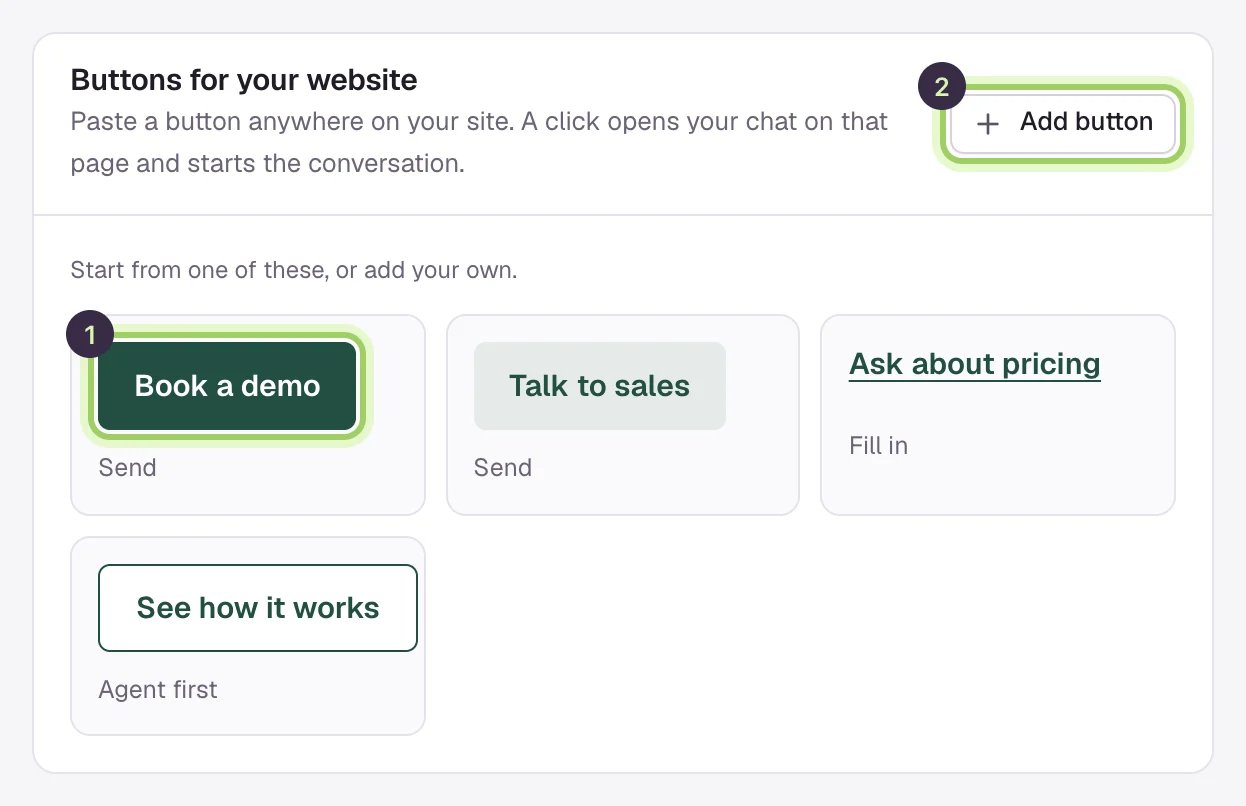
2
Write the label and the message
Button label is what visitors read on the button. Message sent as the visitor is what the chat says for them when they click.
3
Choose what a click does
Under When clicked: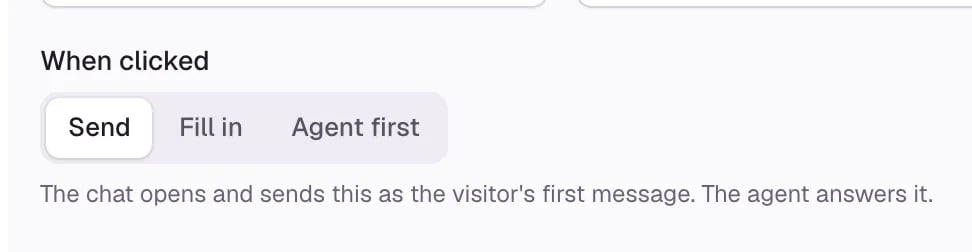
- Send sends the message as the visitor’s first message, and the agent answers it.
- Fill in types the message into the chat box, for the visitor to send or change.
- Agent first has the agent speak first. Use the message to tell the agent what the visitor wants; the visitor doesn’t see it.
4
Style it to fit your page
Under Start from, choose Brand, Soft, Outline or Text link. Buttons take their colors from your chat; change any color under Colors.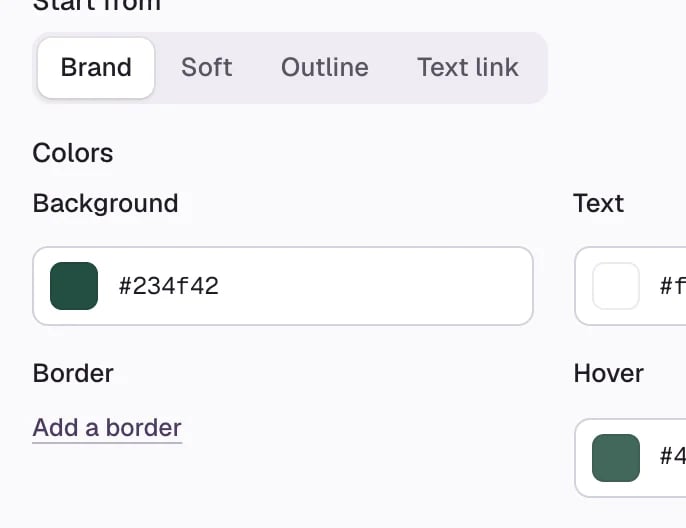
5
Copy the code
Select Copy code. Paste it where the button should appear, on any page that has your Darwin chat. If the chat can’t load, the button opens the same chat on a Darwin page instead. Turn on Add nofollow if your site needs it.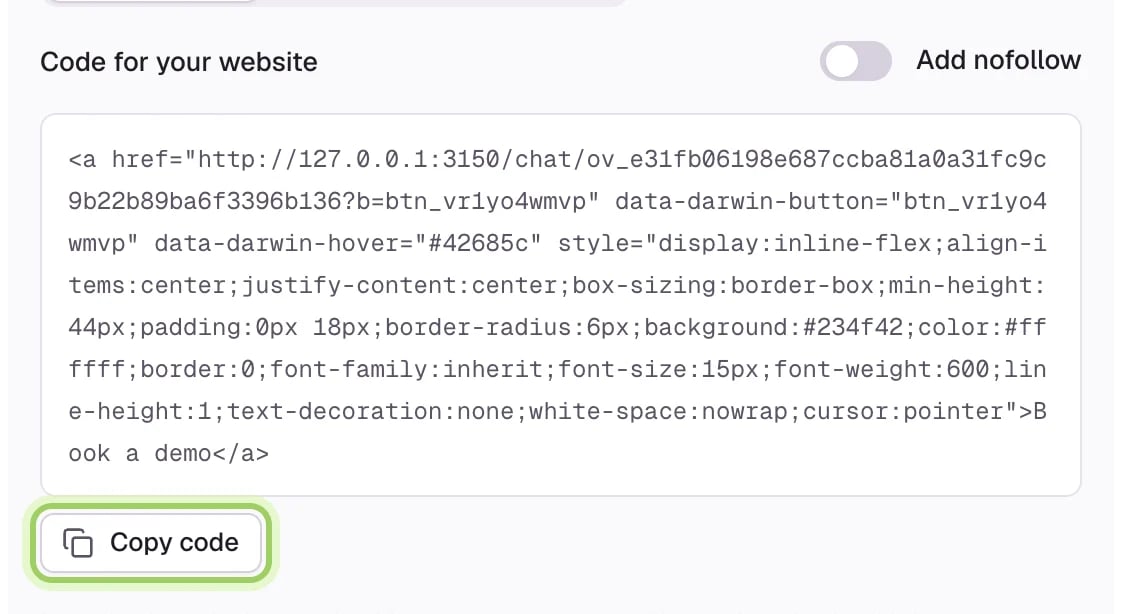
6
Save
Select Save changes. Use Try it next to a button to see what a click does in the preview.
Good to know
- Pasted buttons pick up a new message or click behavior as soon as you save. A new label or look needs the new code pasted over the old.
- If you delete a button, copies already on your site still open the chat but no longer start the conversation.
- The chat must be installed on the page. See Install the chat on your website.
Make the chat look like your brand
Buttons start from your chat’s colors.
Read visitor conversations
See the conversations your buttons start.