

Find it in Darwin Link Studio Open this screen ↗
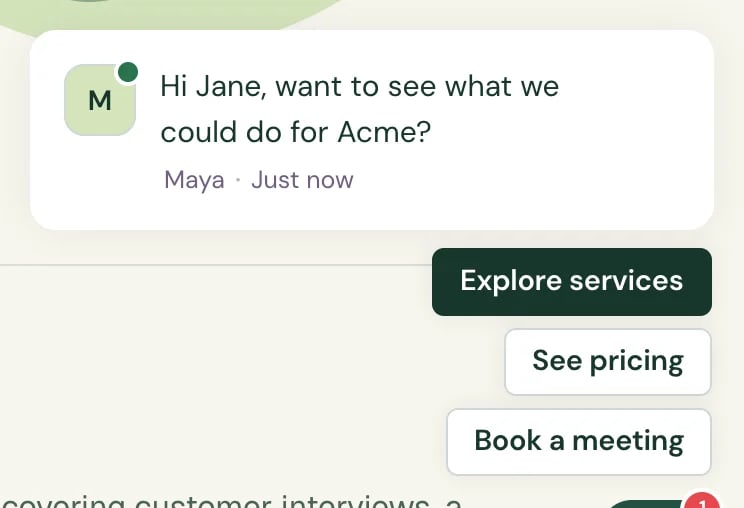
Put a personal link in your outbound emails. When someone clicks it, the chat on your website opens with a greeting written for them, like “Hi Jane, want to see what we could do for Acme?”, and the agent already knows who they are.
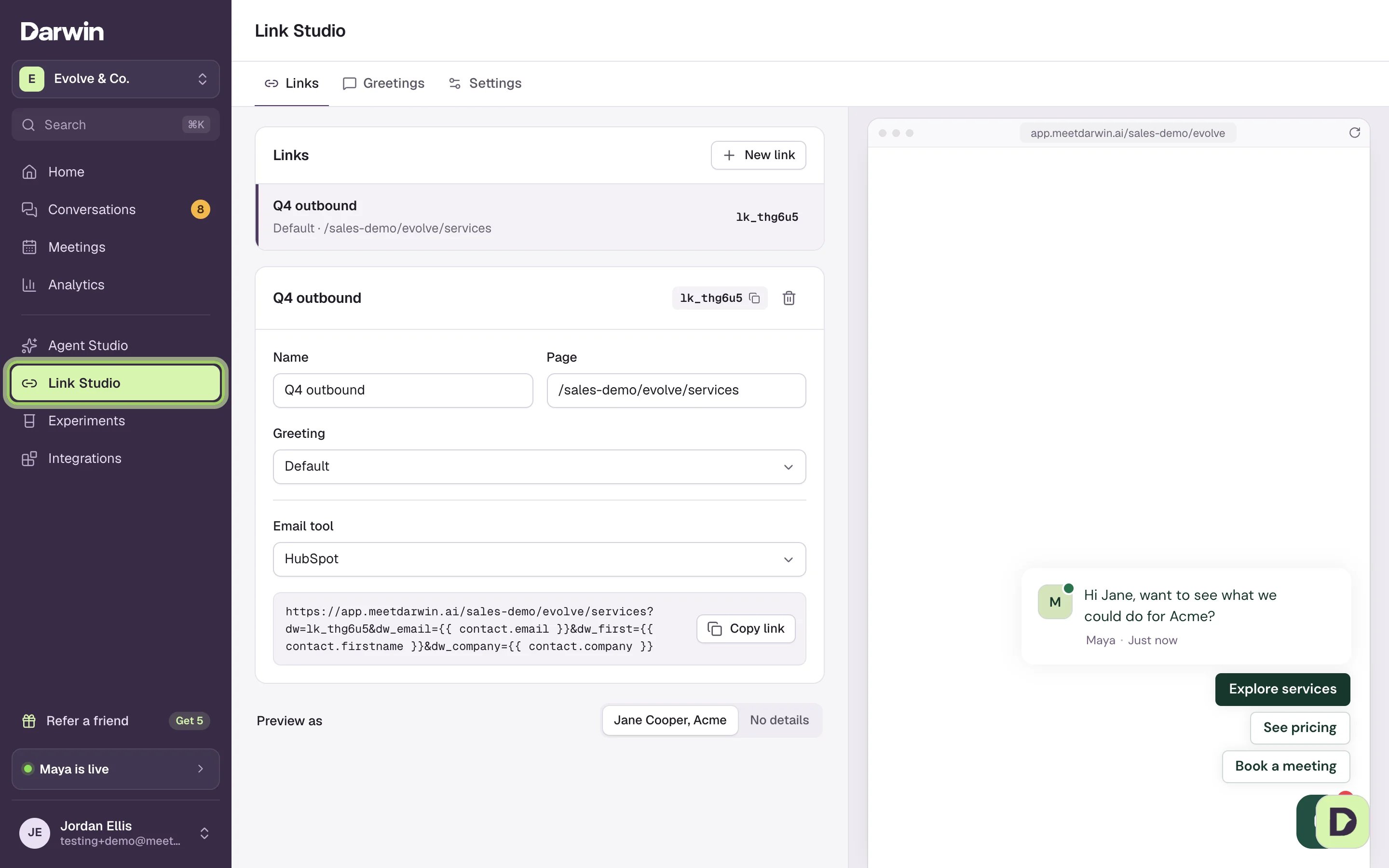
1
Make a link
Open Link Studio in the sidebar, under Agent Studio. On the Links tab, select New link.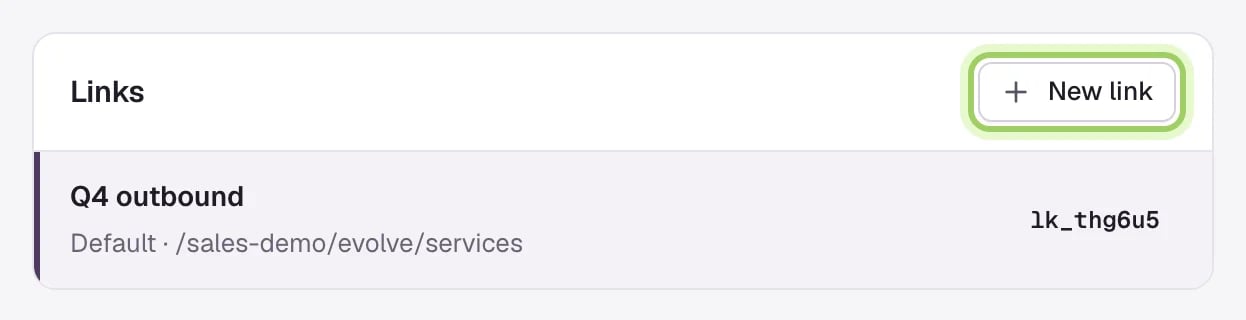
2
Name it, pick the page and the greeting
Give the link a Name your team will recognize, such as the campaign. Under Page, type the page it opens, as a path like 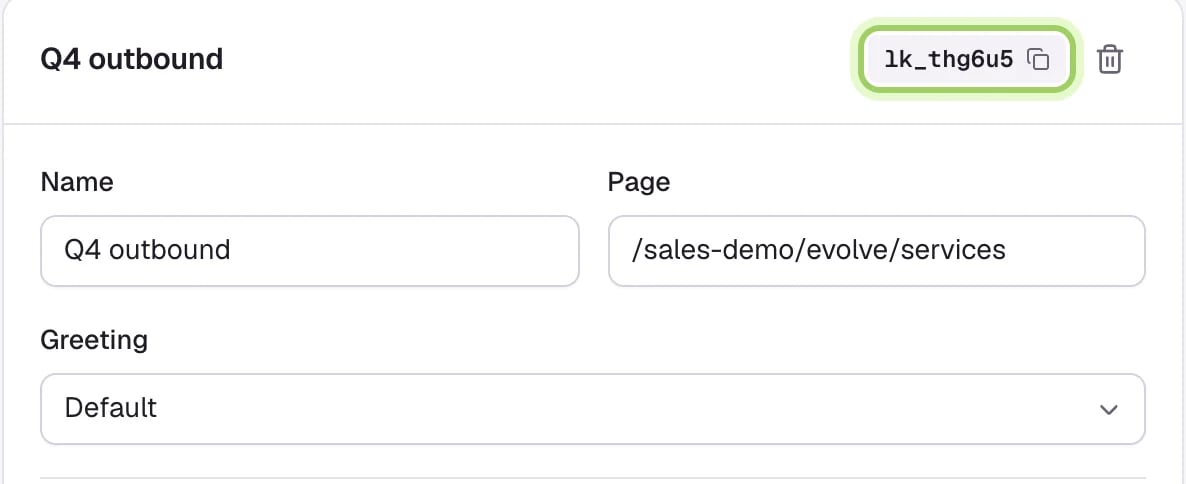
/pricing or a full address. Under Greeting, pick what the chat says. Darwin gives each link an ID like lk_thg6u5; select it to copy it.3
Write the greeting
On the Greetings tab, select a greeting or New greeting. Write one line, and type 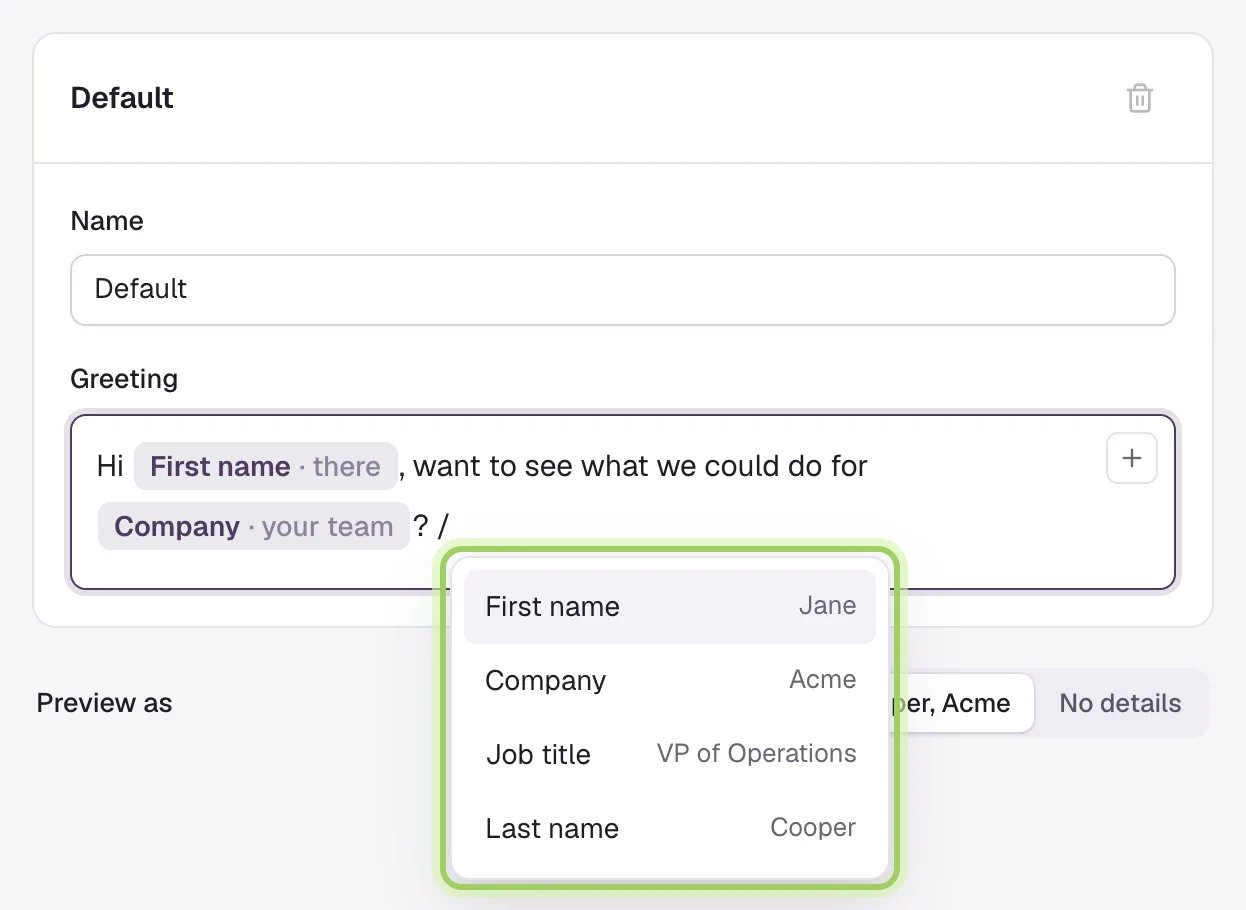
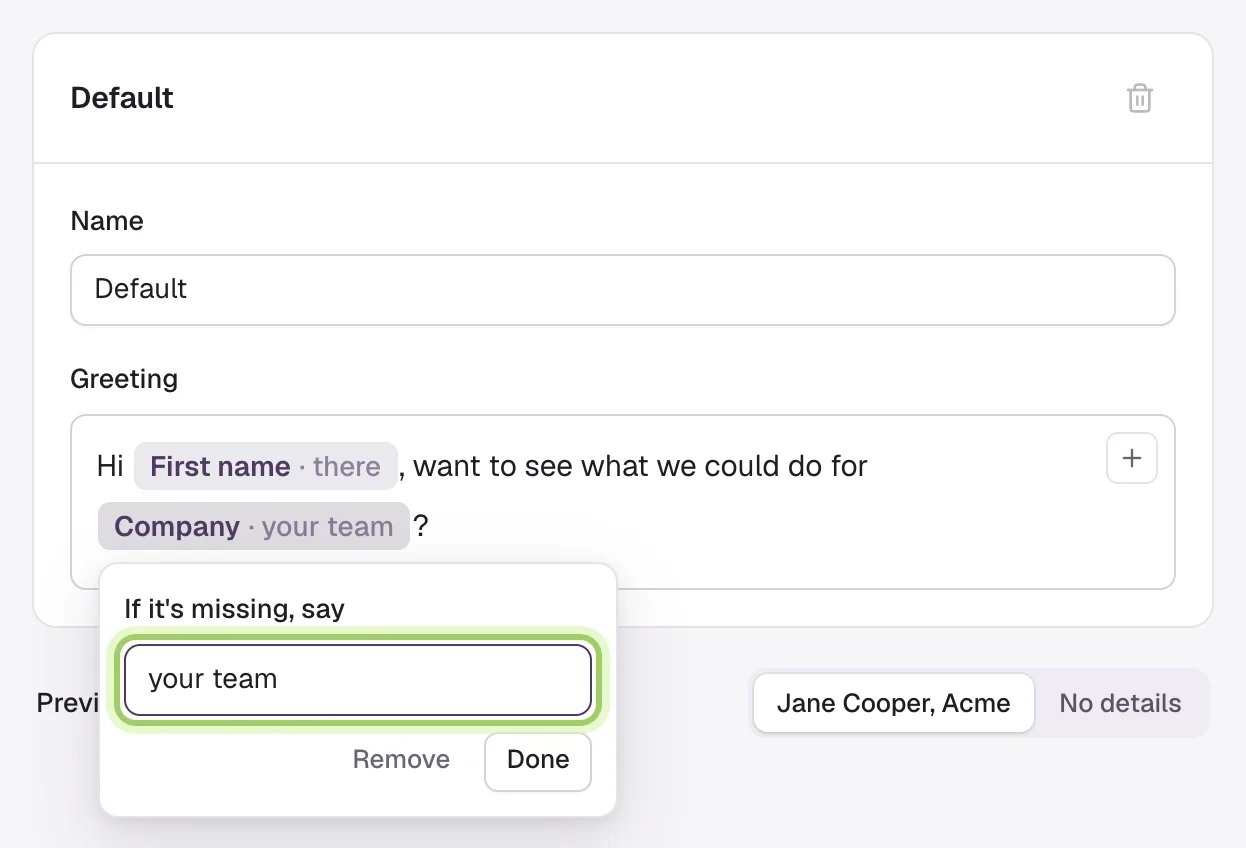
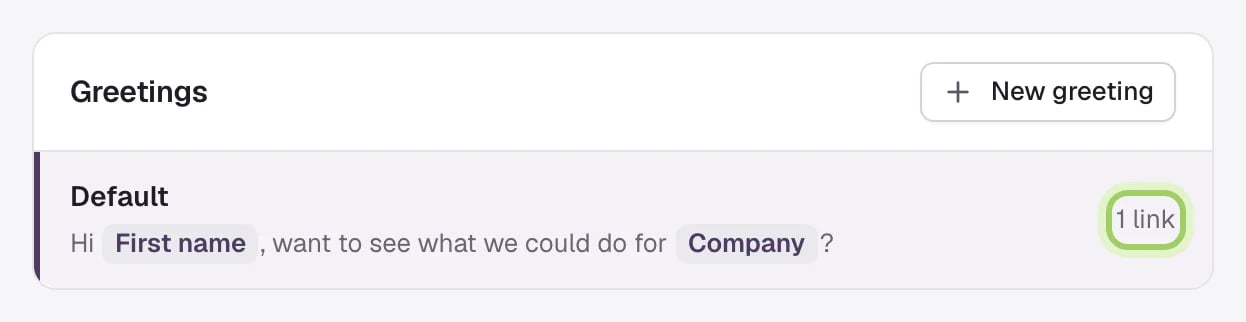
/ where a detail goes: First name, Company, Job title or Last name. Each one shows as a pill.4
Check the preview
The chat on the right shows the greeting filled in. Under Preview as, choose Jane Cooper, Acme to see it with every detail, or No details to see it with your fallback words.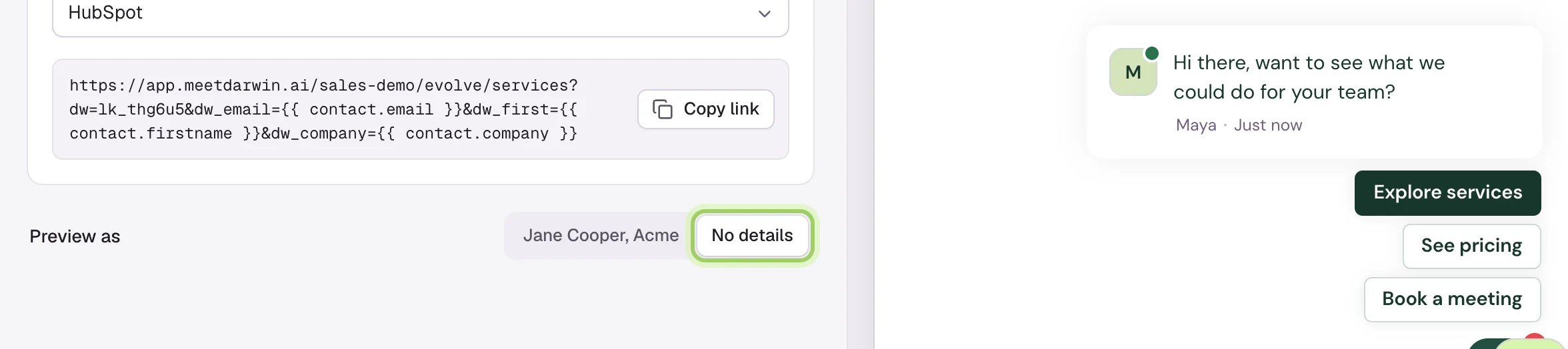
5
Save
Select Save changes. A link only works once it’s saved; until then its copy button reads Save to copy.
6
Copy the link into your email
Back on Links, choose your Email tool: HubSpot, Instantly, Apollo, Outreach, Salesloft, lemlist, or Other / CSV. The box shows the link with that tool’s fields for each person’s details. Select Copy link and paste it into your email or sequence.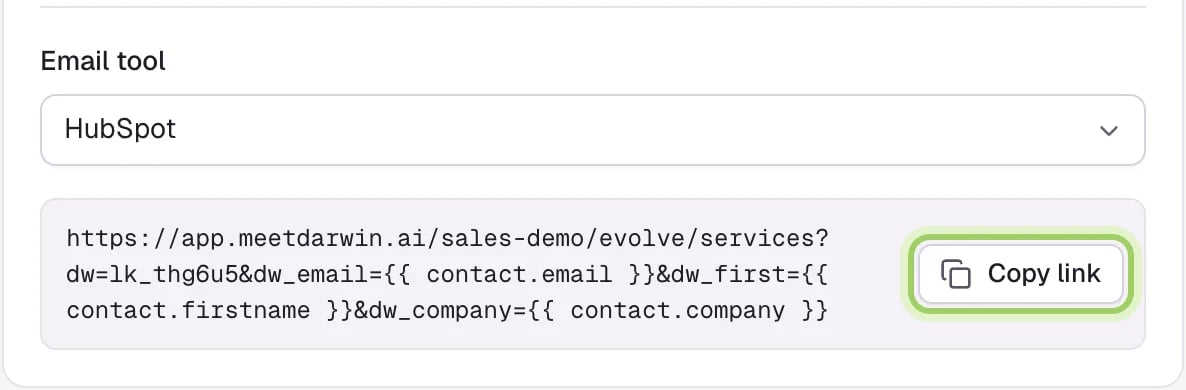
7
Choose what happens when someone clicks
On the Settings tab, Greet people from personal links (1) turns the greetings on or off. Save them as a contact and Fill in the booking form are always on. Turn off Email the team when someone opens their link (2) if you don’t want those emails.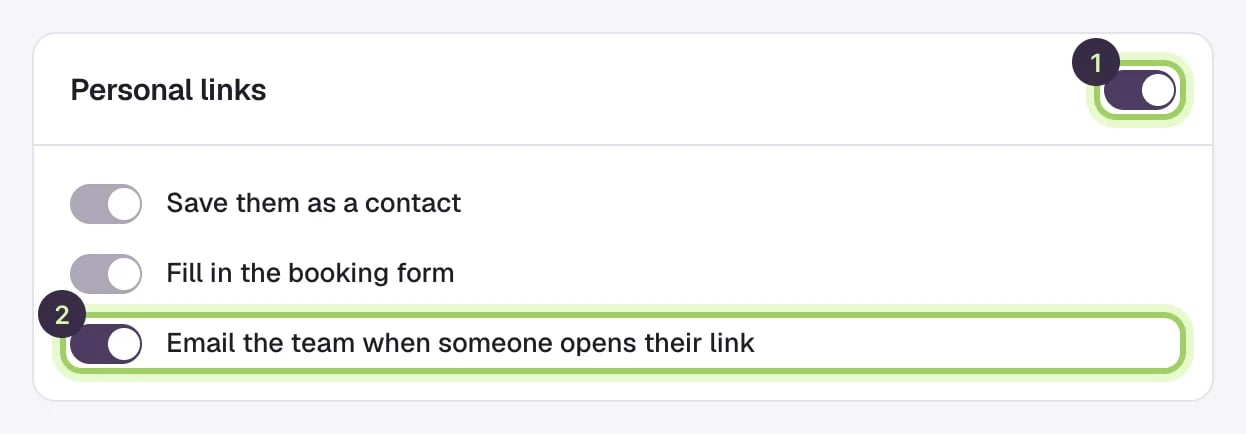
What happens when someone clicks
- The chat’s opening message is replaced by the link’s greeting, filled in with their details. It shows even on pages where you’ve hidden the opening message, and stays on the next pages they open in the same tab.
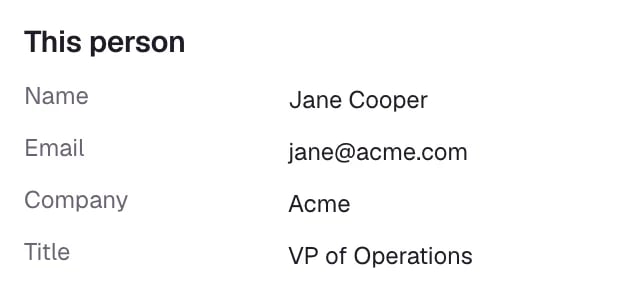
- The agent knows the name, company and title the link carried, so it won’t ask for their name or email again. The booking form is filled in for them.
- If the link carries an email address, Darwin saves the person as a contact or updates the one you have, like a form submission.
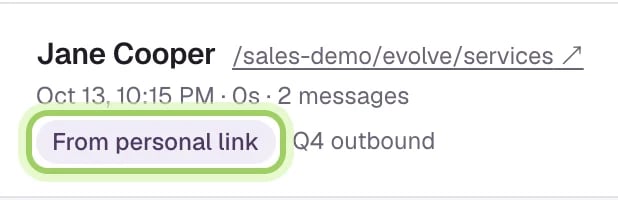
- Your team gets an email such as “Jane Cooper from Acme opened your link”, once per person per link each day. Each teammate can turn these off under Account menu → Notifications → Personal links.
Good to know
- After the chat loads, Darwin removes only the link’s own parameters (
dw,dw_email,dw_first,dw_last,dw_company,dw_title) from the address bar. UTM tags,gclid, your other parameters and#anchorsstay, so your analytics and forms keep their campaign tracking. - If your email tool couldn’t fill in a detail and the link arrives with something like
{{firstName}}, Darwin ignores it and uses your fallback words. - Visits from personal links are left out of the page’s opening experiments, so they don’t skew the results.
- The chat must be installed on the page the link opens. See Install the chat on your website.
- The chat keeps a first-party cookie,
darwin_vid, on your own domain. It holds the same visitor ID the chat already keeps in the browser, sowww.example.comandexample.comcount as one visitor. - Link Studio is on every plan.
Read visitor conversations
See the conversations your links start.
Choose your email updates
Turn the personal link emails on or off for you.