

Find it in Darwin Integrations → Scheduling Open this screen ↗
Darwin books meetings into the calendar you connect. Pick the one your team already uses; you only need one. When it’s connected, Home ticks off Scheduling.
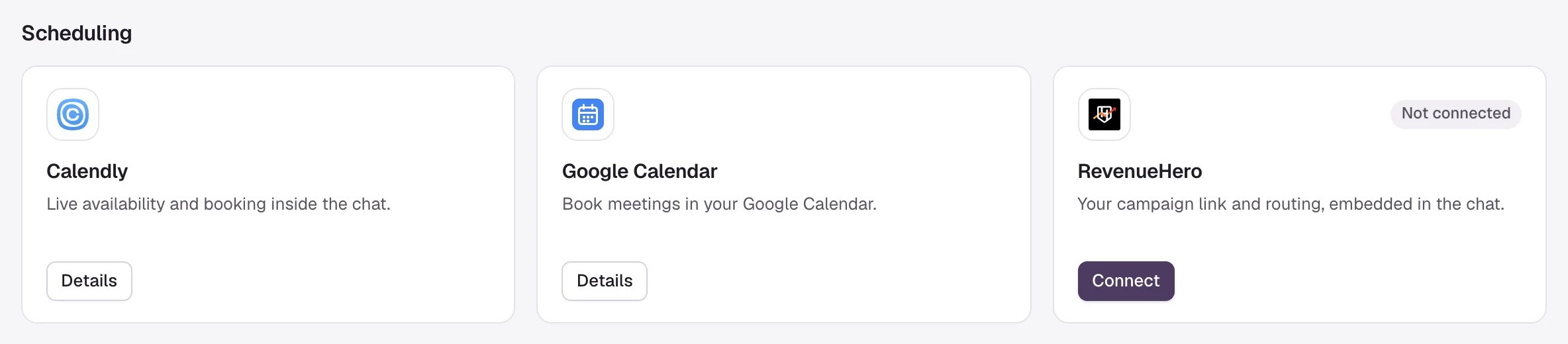
Integrations → Scheduling: pick one calendar.
- Google Calendar
- Calendly
- RevenueHero
Darwin books into your Google Calendar with your own rules for length, notice and hours.Full guide: Connect Google Calendar. For Zoom links, also connect Zoom.
1
Open Google Calendar
In Integrations, select Connect on the Google Calendar card.
2
Connect your Google Calendar
Select Connect Google Calendar and choose the Google account visitors should book into. Approve every permission Google lists; the connection doesn’t finish otherwise.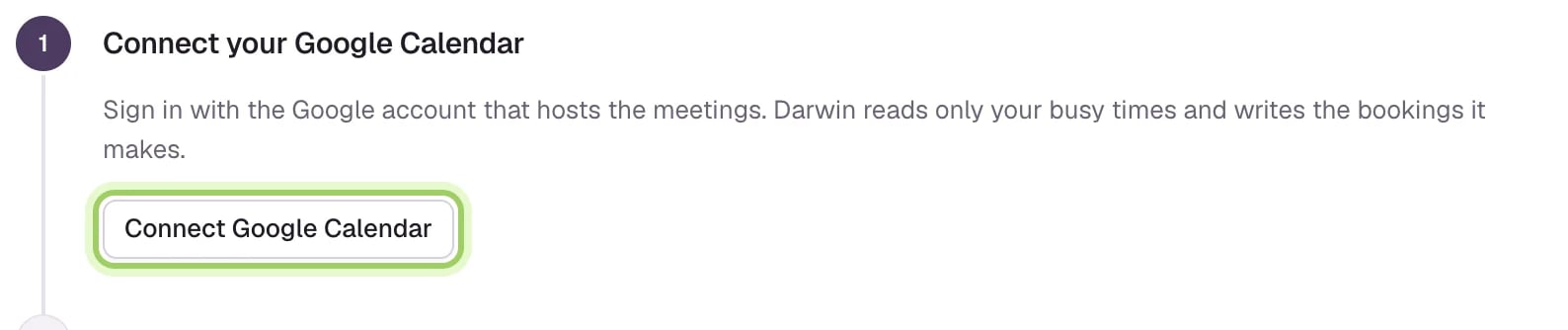
3
Set your booking rules
Select Set booking rules, choose the meeting length, buffer, minimum notice, weekly hours and video call (Google Meet, Zoom or none), then select Save booking rules.




Good to know
- Booking from the Agent Studio preview is a test. It doesn’t put a real meeting in your calendar.
- One calendar handles new bookings at a time. Setting up another one later switches new bookings to it; meetings already booked aren’t canceled.
Step 3: Try your agent
Ask it a few questions before visitors do.
Back to the overview
All five steps.