

Find it in Darwin Agent Studio → Messages Open this screen ↗
Your agent needs a name, a voice and an opening line before it can go live. All three are on one tab in Agent Studio, and saving them ticks off Assistant on Home.
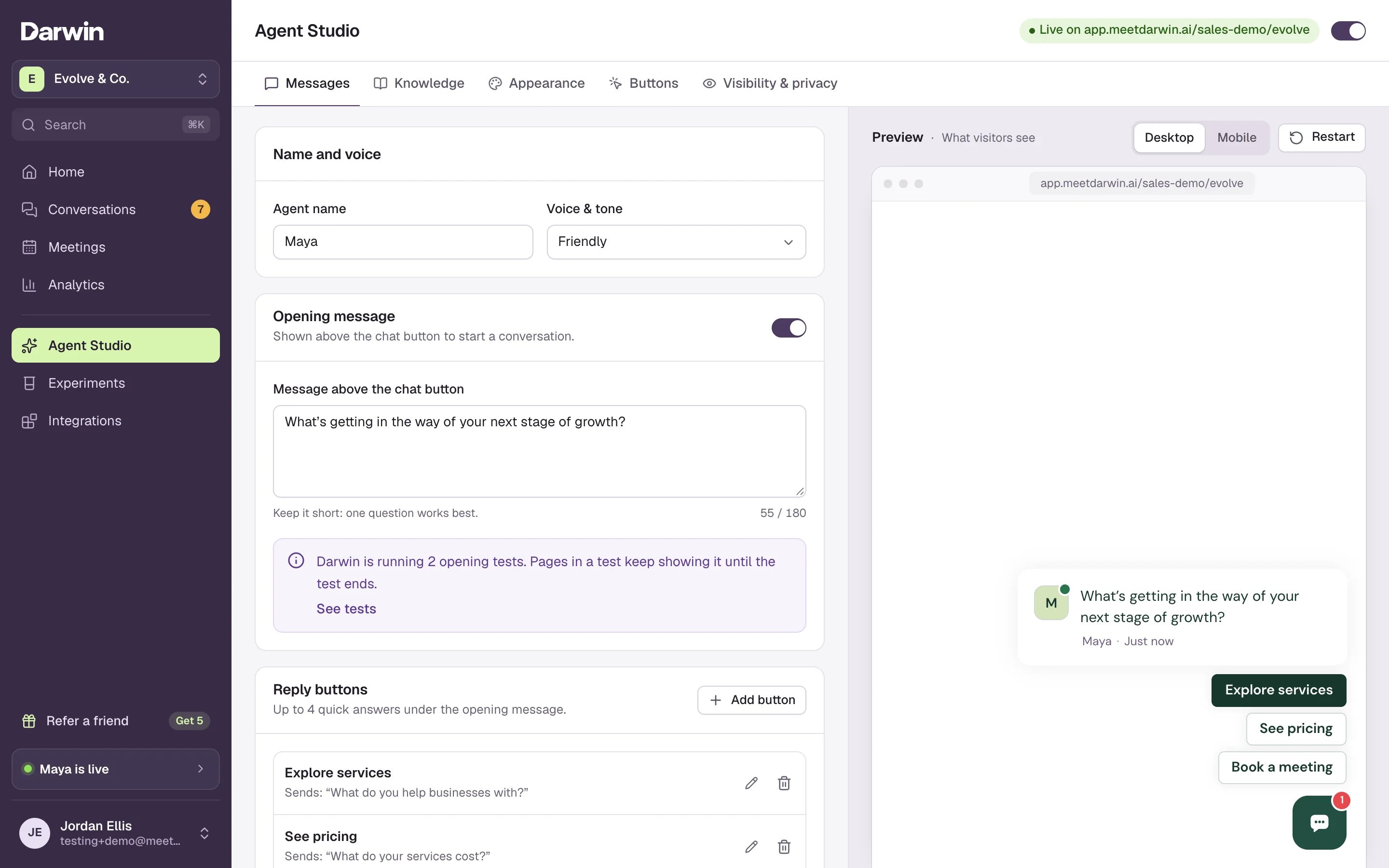
Agent Studio → Messages, with the preview on the right.
1
Open Agent Studio
Select Agent Studio in the sidebar. It opens on the Messages tab.
2
Name your agent and pick its voice
Under Name and voice, type the Agent name visitors see in the chat. Open Voice & tone and choose Friendly, Professional or Direct.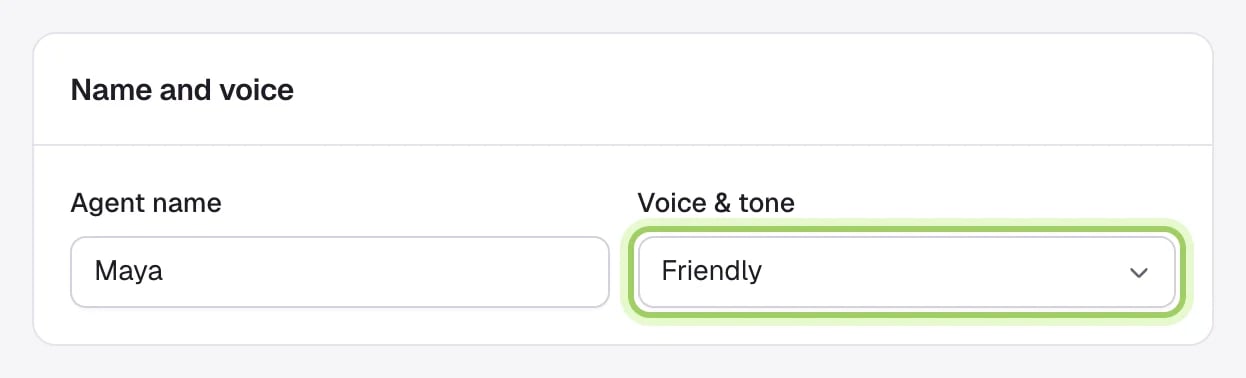
3
Write the opening message
The opening message is the short card above the chat button that invites visitors to talk. Make sure its switch (1) is on, then write it in Message above the chat button (2), up to 120 characters. One question works best, for example “Comparing plans? I can tell you which one fits your team.”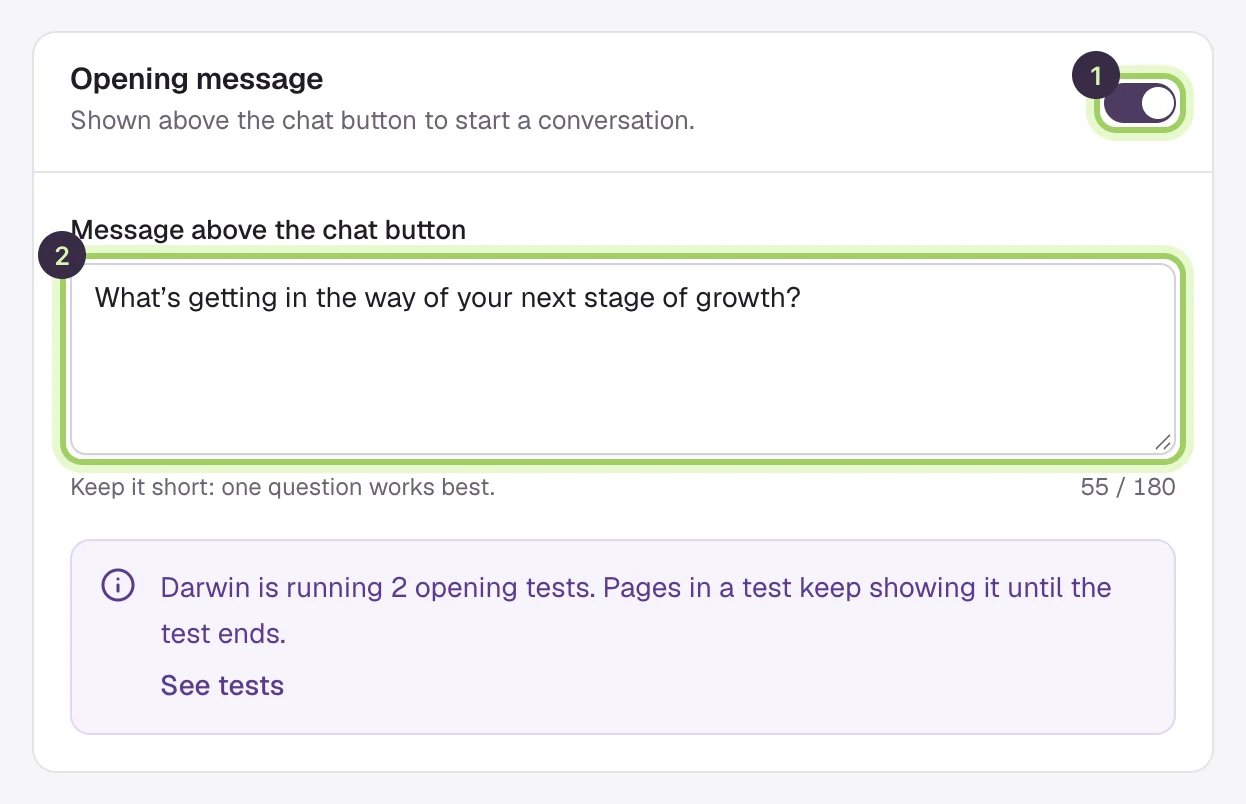
4
Add reply buttons (optional)
Under Reply buttons, select Add button to give visitors one-click answers under the opening, such as See pricing or Book a demo. You can have up to 4.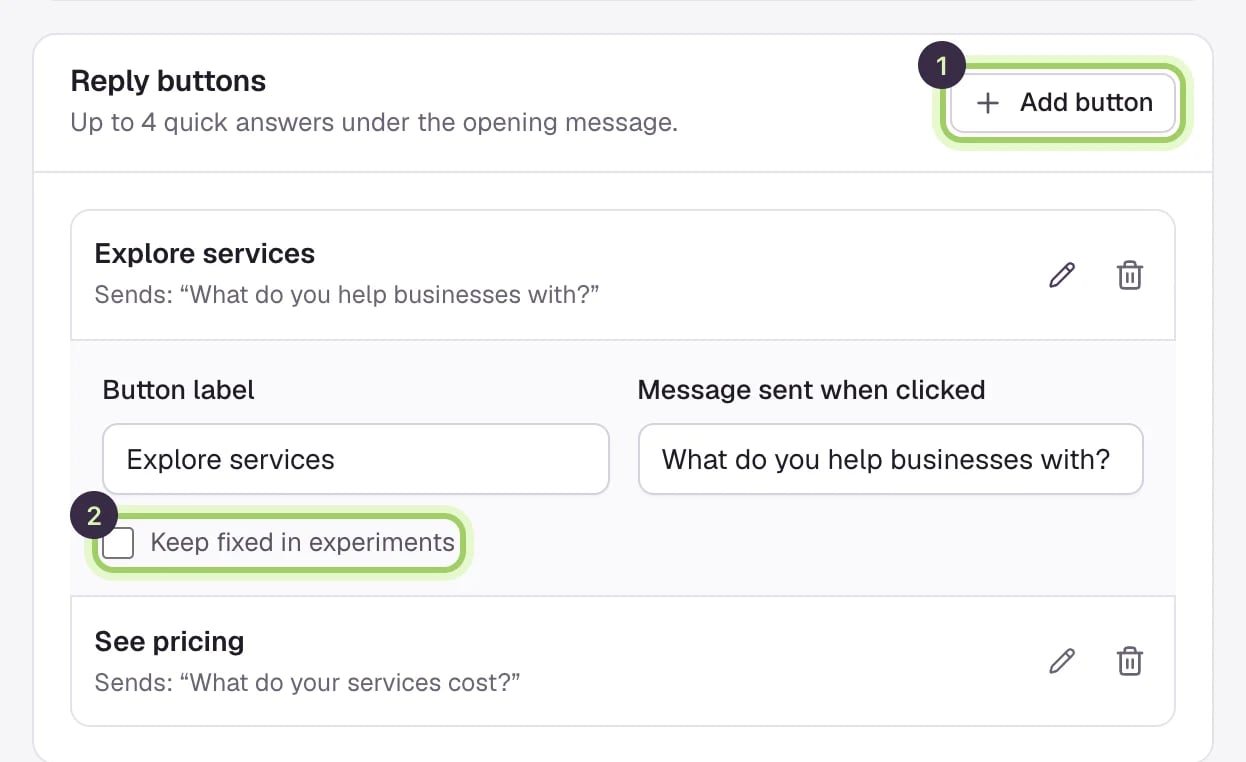
5
Save
Select Save changes in the bar at the bottom. Home now shows Assistant as done.
Good to know
- The preview on the right shows your unsaved changes, so you can see the opening before you save.
- Darwin reads your website when you sign up, so your agent already knows your pages. Check what it knows in Knowledge during step 3.
- Everything on this tab is explained in Messages: name, voice and opening.
Step 2: Connect your calendar
So visitors can book a meeting in the chat.
Back to the overview
All five steps.