

Find it in Darwin Home → Get Darwin live Open this screen ↗
You don’t need the setup chat to get Darwin live. Close it with the × at its top right, then work through the five steps on Home. Each step is done on a normal Darwin screen, and Home ticks it off when it’s done.
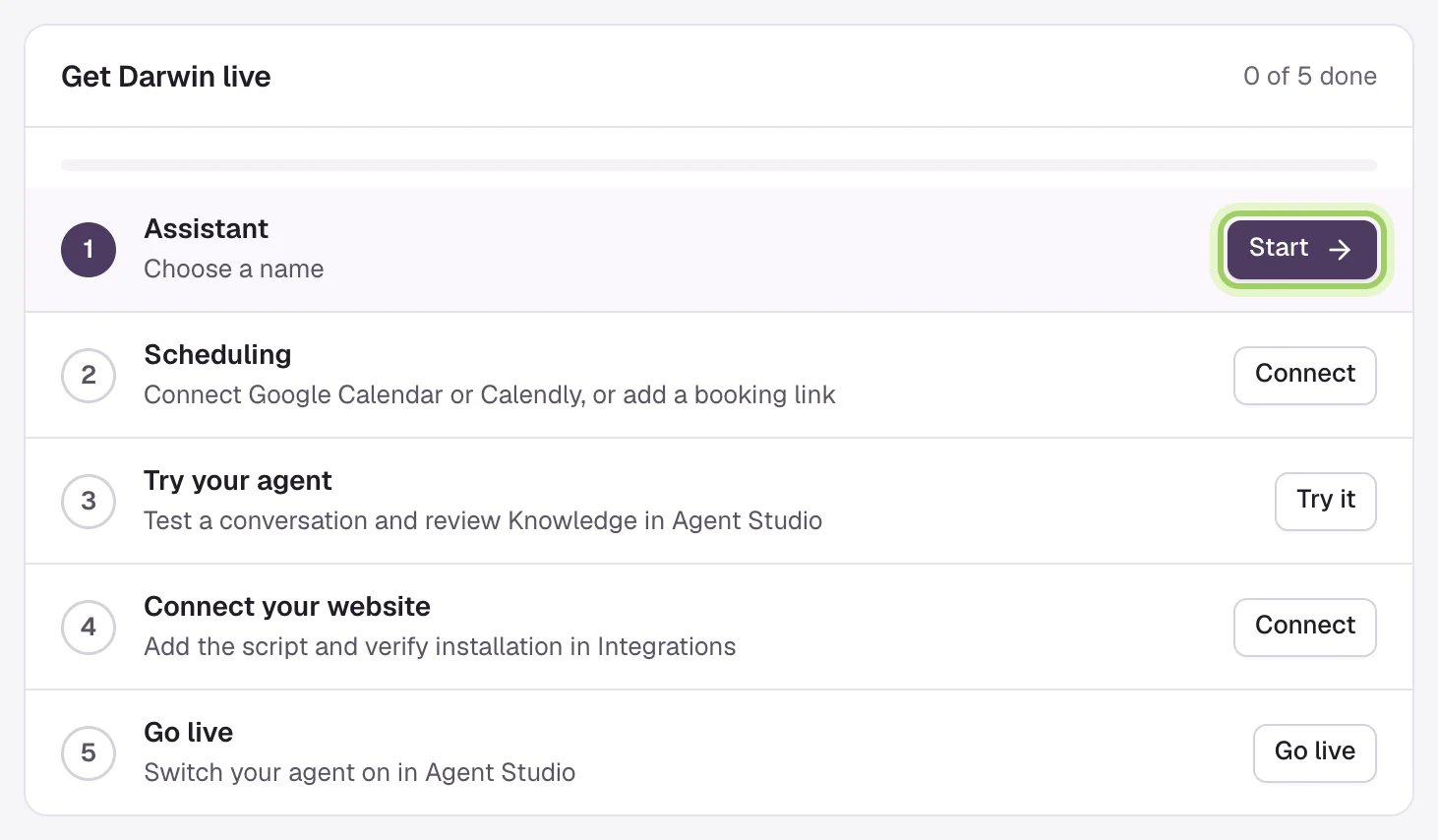
Home in a new workspace: the five setup steps.
1
Set up your agent
Name your agent, pick its voice and write the opening line in Agent Studio → Messages. Step 1 guide
2
Connect your calendar
Connect Google Calendar, Calendly or RevenueHero in Integrations, so visitors can book in the chat. Step 2 guide
3
Try your agent
Ask your agent a few questions in Agent Studio’s preview, with an optional four-part setup tour. Step 3 guide
4
Add the chat to your website
Add Darwin’s site tag to your website, or connect Webflow. There’s a guide for each kind of website. Step 4 guide
5
Go live
Turn on Turn your agent live in Agent Studio. Step 5 guide
Good to know
- Home’s Start button on Assistant opens the setup chat. To skip the chat, open Agent Studio from the sidebar instead.
- You can do steps 2 to 4 in any order. Go live needs the others done first.
- Stuck on a step? Select Ask Darwin on Home, or email support@meetdarwin.ai.
Step 1: Set up your agent
Name, voice and opening line in Agent Studio.
Set up with Darwin's help
Prefer to do it in chat? Darwin walks you through.