> ## Documentation Index
> Fetch the complete documentation index at: https://docs.meetdarwin.ai/llms.txt
> Use this file to discover all available pages before exploring further.
# See your meetings
> Meetings: where to find the meetings visitors booked in Darwin's chat, as upcoming, past or canceled, search them, check usage, and open the conversation each meeting came from.
Every meeting a visitor books in the chat lands here once your scheduling provider confirms it.
 Choose **Upcoming**, **Past** or **Canceled** (1). Each shows how many meetings it holds. Upcoming lists the soonest first; Past and Canceled list the most recent first. Type in **Search meetings** (2) to find a meeting by name, email, meeting type or host.
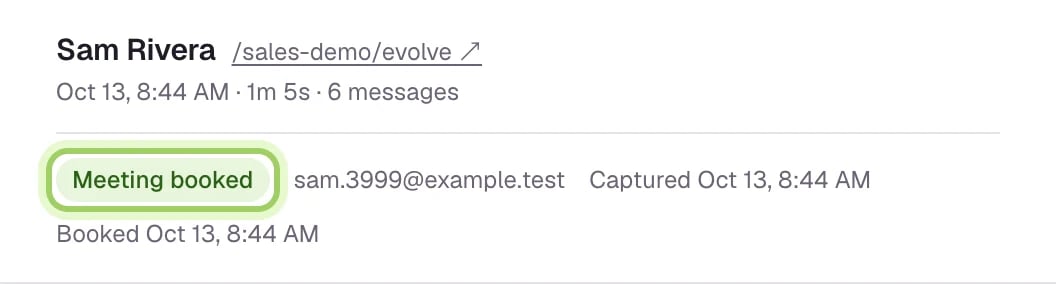
 Select **Conversation** at the end of a row to read the chat the meeting came from. You can also open **Conversations** and choose the **Meetings booked** tab. A booked conversation shows **Meeting booked** at the top, with the visitor's email and when they booked.

 The list updates by itself every 30 seconds; select **Refresh** (2) to check now. **Calendar settings** (1) opens Integrations, where you choose how meetings get booked.
 ## What each meeting shows
* **When**: the date and time, in your browser's time zone.
* **With**: the visitor's name and email.
* **Meeting**: the meeting type, the host and the provider.
* **Status**: **Confirmed**, **Pending** or **Canceled**, and how many times it was rescheduled.
* **Usage**: whether the meeting is **Included** in your plan, what it costs, or **Not billed**.
* **Conversation**: a link to the chat the meeting came from.
## Good to know
* A booking shows as pending while Darwin confirms it with your calendar. Pending bookings don't count toward usage until they're confirmed.
* With RevenueHero, bookings reported by the chat wait under **Awaiting verification** until RevenueHero's webhook confirms them. They aren't counted until then.
* Bookings made in the Agent Studio preview are tests and never appear here.
* Search looks through every meeting in the tab you're on, not just the page on screen.
Connect Calendly, Google Calendar or RevenueHero.
What to check when a meeting doesn't show up.
This documentation is built and hosted on [Mintlify](https://mintlify.com), a developer documentation platform.
## What each meeting shows
* **When**: the date and time, in your browser's time zone.
* **With**: the visitor's name and email.
* **Meeting**: the meeting type, the host and the provider.
* **Status**: **Confirmed**, **Pending** or **Canceled**, and how many times it was rescheduled.
* **Usage**: whether the meeting is **Included** in your plan, what it costs, or **Not billed**.
* **Conversation**: a link to the chat the meeting came from.
## Good to know
* A booking shows as pending while Darwin confirms it with your calendar. Pending bookings don't count toward usage until they're confirmed.
* With RevenueHero, bookings reported by the chat wait under **Awaiting verification** until RevenueHero's webhook confirms them. They aren't counted until then.
* Bookings made in the Agent Studio preview are tests and never appear here.
* Search looks through every meeting in the tab you're on, not just the page on screen.
Connect Calendly, Google Calendar or RevenueHero.
What to check when a meeting doesn't show up.
This documentation is built and hosted on [Mintlify](https://mintlify.com), a developer documentation platform.