> ## Documentation Index
> Fetch the complete documentation index at: https://docs.meetdarwin.ai/llms.txt
> Use this file to discover all available pages before exploring further.
# See results and follow up on personal links
> Link Studio results: each personal link's visits, chats, reached booking and meetings for the last 30 days, the conversations it started in Conversations, the From personal link badge and This person panel, and the team email when someone opens their link.
Each link counts the people who opened it and what they did next. From there you can open their conversations and see who they are.
On the **Links** tab, each row shows its results under its name, such as "48 visits · 14 chats · 3 meetings", or **No visits yet**. Draft links read **Choose a greeting** instead.
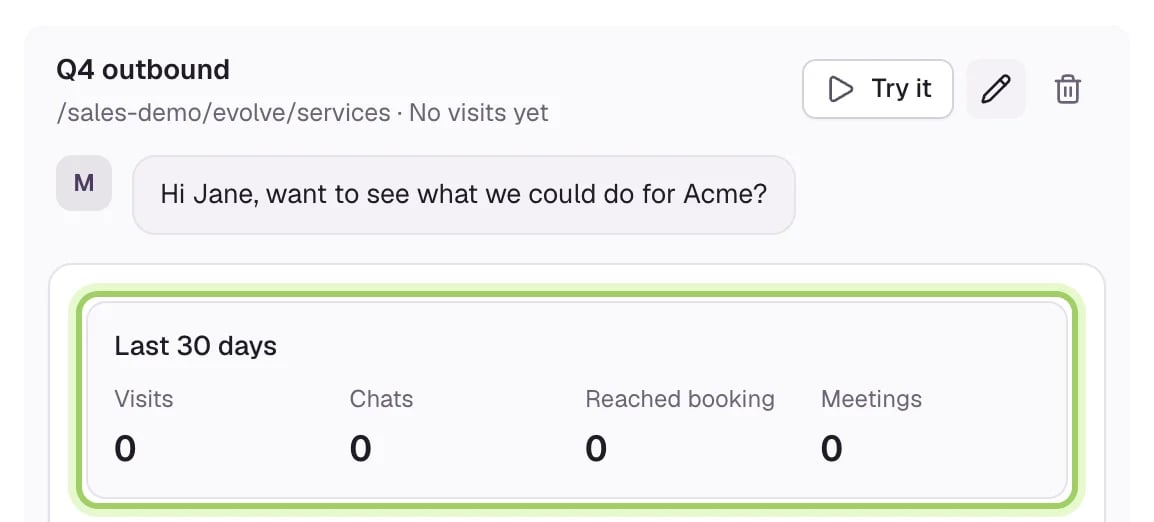
Open a link to see **Last 30 days** (marked):
* **Visits**: the people who opened the link, each counted once.
* **Chats**: of those, the ones who started a conversation afterwards.
* **Reached booking**: the ones who got to booking a meeting in the chat.
* **Meetings**: the ones who booked.
 The **Greetings** tab shows the same numbers for each greeting a link uses, counted from the visits where it was the greeting shown.
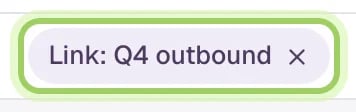
Once a link has visits, select **See conversations** next to **Last 30 days**. **Conversations** opens with only that link's visitors, under a **Link:** chip with the link's name. Select the chip's **×** to see everyone again.
The **Greetings** tab shows the same numbers for each greeting a link uses, counted from the visits where it was the greeting shown.
Once a link has visits, select **See conversations** next to **Last 30 days**. **Conversations** opens with only that link's visitors, under a **Link:** chip with the link's name. Select the chip's **×** to see everyone again.
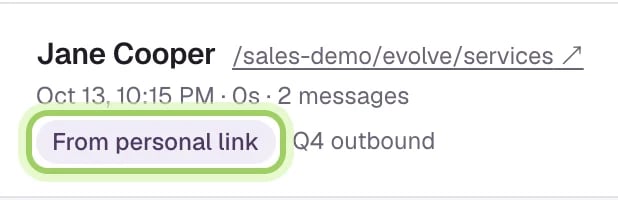
 A conversation that started from a link shows **From personal link** and the link's name.
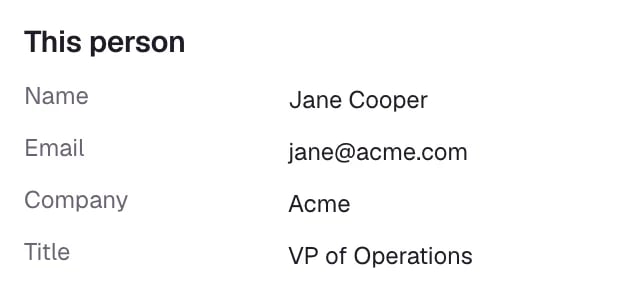
 **This person**, beside the conversation, shows their details, their **Personal link visits** and their **Other conversations**, so you can follow up with the whole picture.
 When someone opens their link, your team gets an email such as "Jane Cooper from Acme opened your link", with the link and the page they landed on. It goes out once per person per link each day, whether or not they chat.
Each teammate can turn these off under **Account menu → Notifications → Personal links**. To stop them for everyone, turn off **Email the team when someone opens their link** in [Link Studio's settings](/link-studio/settings).
When someone opens their link, your team gets an email such as "Jane Cooper from Acme opened your link", with the link and the page they landed on. It goes out once per person per link each day, whether or not they chat.
Each teammate can turn these off under **Account menu → Notifications → Personal links**. To stop them for everyone, turn off **Email the team when someone opens their link** in [Link Studio's settings](/link-studio/settings).
 ## Good to know
* Results leave out visits from your team and from test browsers, so opening your own link to check it doesn't count.
* Results cover the last 30 days and update on their own while Link Studio is open.
* If the link carries an email address, the person is saved as a contact, or the contact you have is updated, like a form submission.
* When someone opens your link but doesn't chat, there's no conversation to show yet; the team email is how you know they came.
Find a visitor's chat and follow up.
Turn the personal link emails on or off for you.
This documentation is built and hosted on [Mintlify](https://mintlify.com), a developer documentation platform.
## Good to know
* Results leave out visits from your team and from test browsers, so opening your own link to check it doesn't count.
* Results cover the last 30 days and update on their own while Link Studio is open.
* If the link carries an email address, the person is saved as a contact, or the contact you have is updated, like a form submission.
* When someone opens your link but doesn't chat, there's no conversation to show yet; the team email is how you know they came.
Find a visitor's chat and follow up.
Turn the personal link emails on or off for you.
This documentation is built and hosted on [Mintlify](https://mintlify.com), a developer documentation platform.