> ## Documentation Index
> Fetch the complete documentation index at: https://docs.meetdarwin.ai/llms.txt
> Use this file to discover all available pages before exploring further.
# Make and share personal links
> Link Studio → Links: add a personal link, name it, pick the page it opens, give it a greeting, save it, then choose your email tool (HubSpot, Instantly, Apollo, Outreach, Salesloft, lemlist or CSV) and copy the link into your email.
Make a link for each campaign or sequence, give it a greeting, and paste it into your emails. Each person who clicks it gets the greeting with their own name.
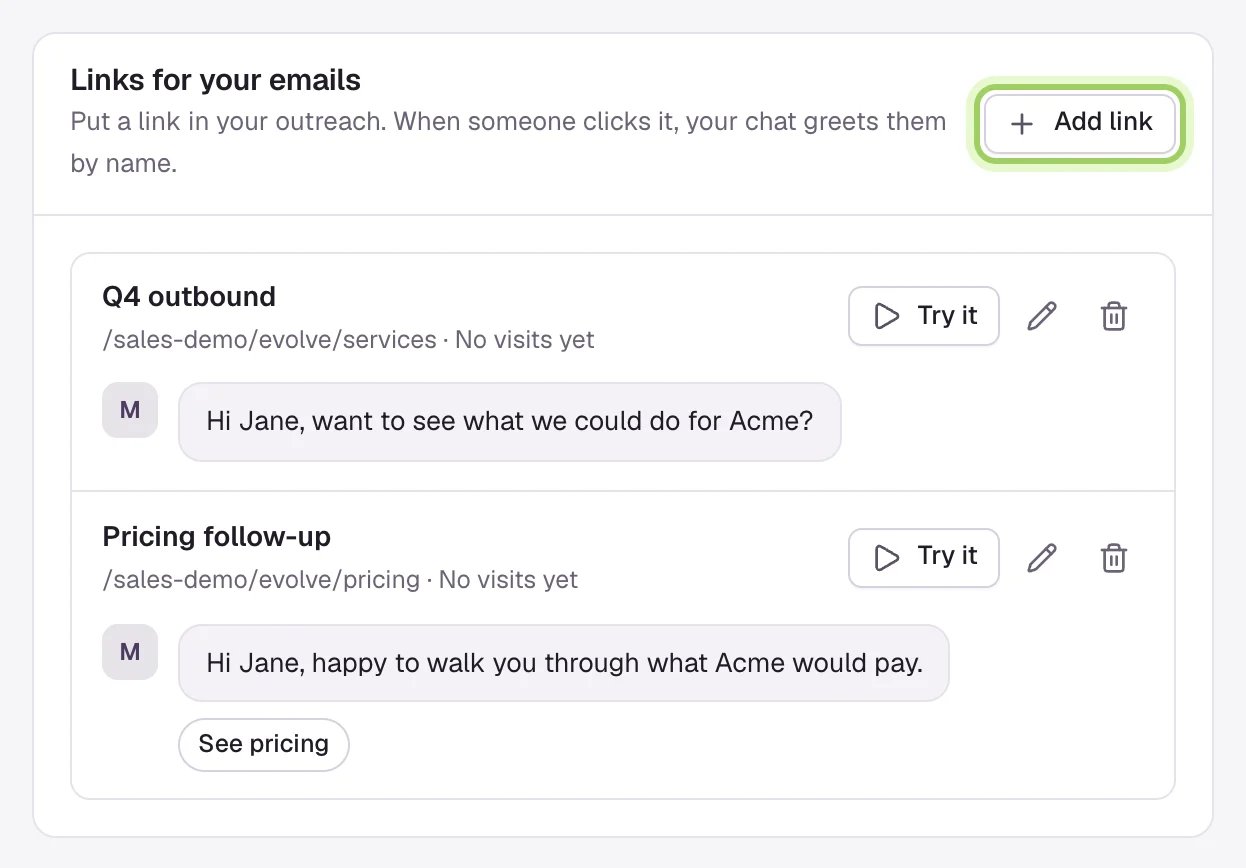
Open **Link Studio** in the sidebar. On the **Links** tab, select **Add link**. With no links yet, you can start from **Outbound**, **Pricing follow-up**, **After a demo** or **Event follow-up**, which come with a greeting.
Each link shows its name, the page it opens, its results and the greeting as the chat will show it, filled in for Jane Cooper from Acme.
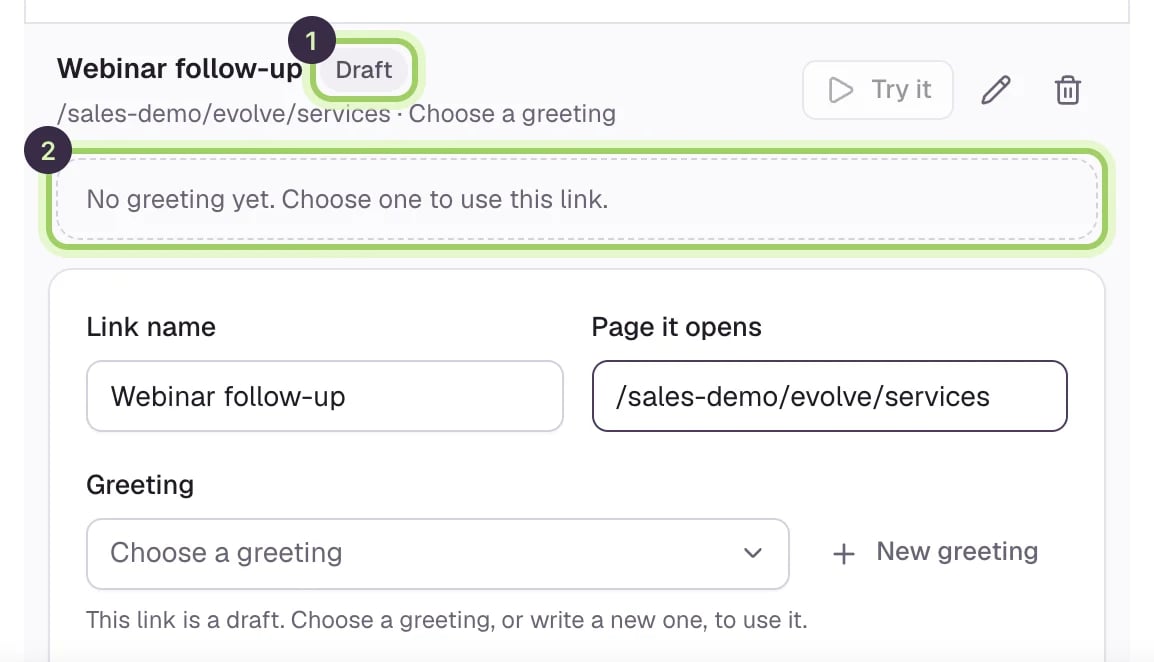
 The new link opens below its row. Give it a **Link name** your team will recognize, such as the campaign. Under **Page it opens**, type a path like `/pricing` or a full address.
A new link is a **Draft** (1) until it has a greeting (2). You can't copy a draft or try it, and a draft greets no one: visitors see your page's usual opening message.
The new link opens below its row. Give it a **Link name** your team will recognize, such as the campaign. Under **Page it opens**, type a path like `/pricing` or a full address.
A new link is a **Draft** (1) until it has a greeting (2). You can't copy a draft or try it, and a draft greets no one: visitors see your page's usual opening message.
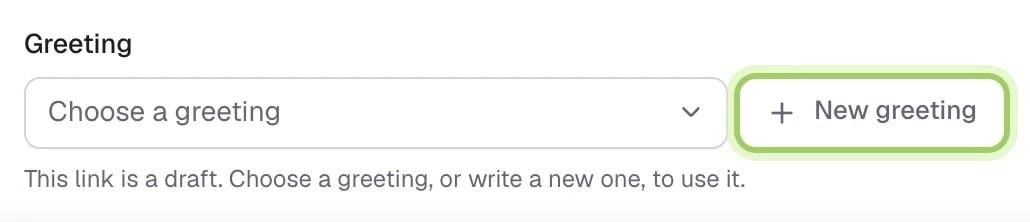
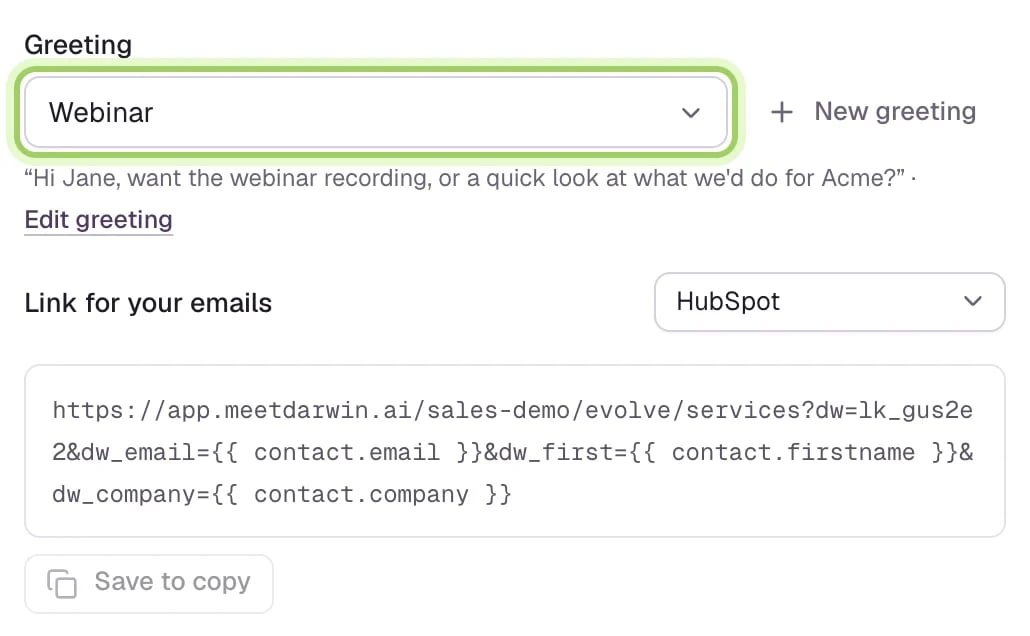
 Under **Greeting**, choose one you've already written. To write one for this link, select **New greeting**.
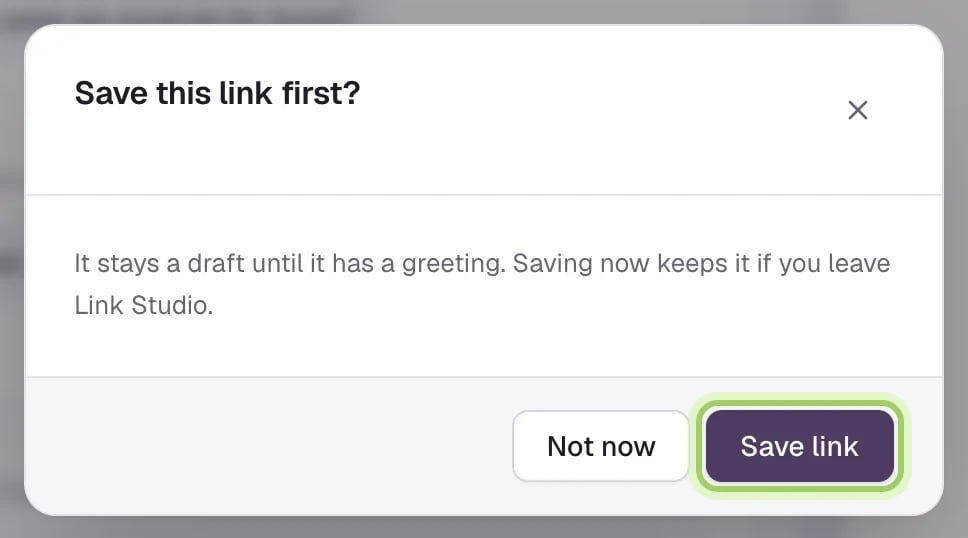
 If you have unsaved changes, Darwin asks **Save this link first?** Select **Save link** to keep the draft if you leave Link Studio, or **Not now** to carry on.
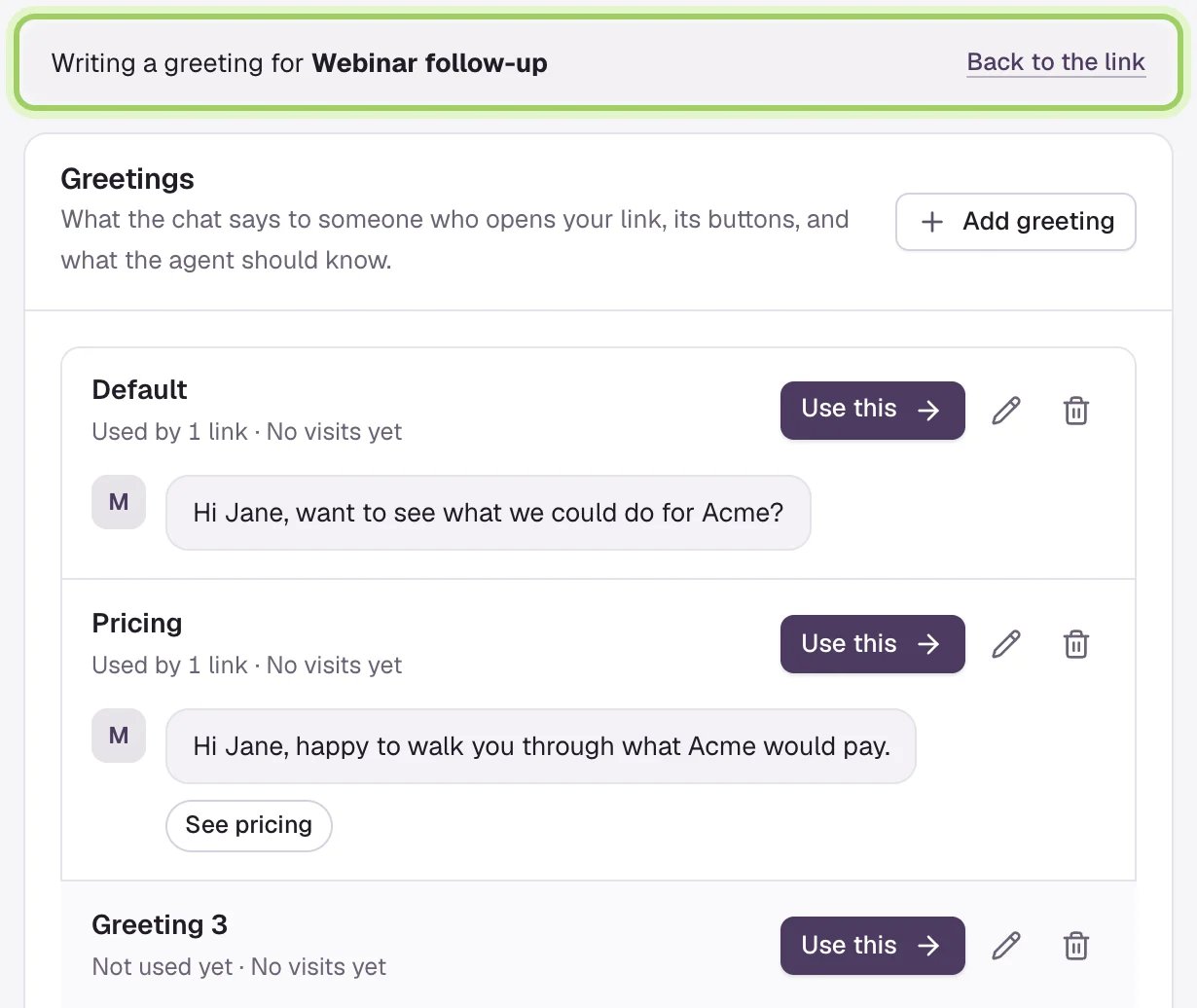
 The **Greetings** tab opens with a new greeting, under a bar that reads **Writing a greeting for** your link. Write it as in [Write greetings](/link-studio/greetings), then select **Use for** your link at the bottom of the greeting, or **Use this** on any greeting in the list. **Back to the link** returns without choosing one.
 Back on the link, the greeting you chose (marked) shows filled in, with **Edit greeting** to change it.
 The chat on the right shows the greeting and its buttons. **Try it** on any link shows that link's greeting there. Under **Preview as**, choose **Jane Cooper, Acme** to see it with every detail, or **No details** to see it with your fallback words.
 Select **Save changes**. A link only works once it's saved; until then its copy button reads **Save to copy**. **Discard** undoes everything since you last saved.
 Open the link. Under **Link for your emails**, choose your email tool (1): HubSpot, Instantly, Apollo, Outreach, Salesloft, lemlist, or **Other / CSV**. The box shows the link with that tool's merge fields for each person's details. Select **Copy link** (2) and paste it into your email or sequence.
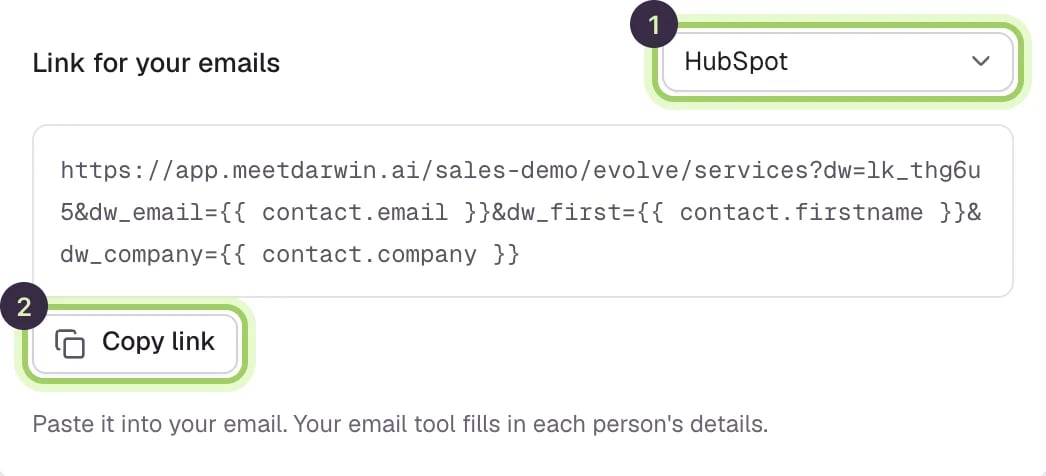 Your email tool fills in each person's details when it sends. When Jane clicks, your page opens and the chat greets her by name.
## Change or delete a link
Select a link's name or its pencil to open it, change it, and select **Save changes**. To delete a link, select its trash icon, then **Save changes**. Until you save, **Discard** brings it back.
The address you copy carries the page and the link's ID. Emails you've already sent keep the page they had, so after changing **Page it opens**, copy the link again for new emails. The greeting is looked up by the link's ID, so a new greeting reaches every email already sent.
## Good to know
* The link only asks your email tool for the details its greeting uses, plus the email address. If you add a name or company to the greeting later, copy the link again.
* **Other / CSV** uses placeholders like `FIRST_NAME` and `COMPANY`. Replace them with your tool's merge fields, or fill them per row in a spreadsheet.
* If your email tool couldn't fill in a detail and the link arrives with something like `{{firstName}}`, Darwin ignores it and uses your fallback words.
* Opening your own link to check it doesn't count in its results: visits from your team and test browsers are left out.
* A workspace can have up to 100 links.
What the chat says, its buttons and what the agent knows.
See each link's visits, chats and meetings.
This documentation is built and hosted on [Mintlify](https://mintlify.com), a developer documentation platform.
Your email tool fills in each person's details when it sends. When Jane clicks, your page opens and the chat greets her by name.
## Change or delete a link
Select a link's name or its pencil to open it, change it, and select **Save changes**. To delete a link, select its trash icon, then **Save changes**. Until you save, **Discard** brings it back.
The address you copy carries the page and the link's ID. Emails you've already sent keep the page they had, so after changing **Page it opens**, copy the link again for new emails. The greeting is looked up by the link's ID, so a new greeting reaches every email already sent.
## Good to know
* The link only asks your email tool for the details its greeting uses, plus the email address. If you add a name or company to the greeting later, copy the link again.
* **Other / CSV** uses placeholders like `FIRST_NAME` and `COMPANY`. Replace them with your tool's merge fields, or fill them per row in a spreadsheet.
* If your email tool couldn't fill in a detail and the link arrives with something like `{{firstName}}`, Darwin ignores it and uses your fallback words.
* Opening your own link to check it doesn't count in its results: visits from your team and test browsers are left out.
* A workspace can have up to 100 links.
What the chat says, its buttons and what the agent knows.
See each link's visits, chats and meetings.
This documentation is built and hosted on [Mintlify](https://mintlify.com), a developer documentation platform.