> ## Documentation Index
> Fetch the complete documentation index at: https://docs.meetdarwin.ai/llms.txt
> Use this file to discover all available pages before exploring further.
# Write greetings for your personal links
> Link Studio → Greetings: write what the chat says to someone who opens your personal link, with their first name, company or job title and words to use when one is missing, up to four reply buttons, and a note on what the agent should know.
A greeting is what the chat says to someone who opens one of your links. It has three parts: what the chat says (1), the reply buttons under it (2), and what the agent should know (3). One greeting can serve many links.
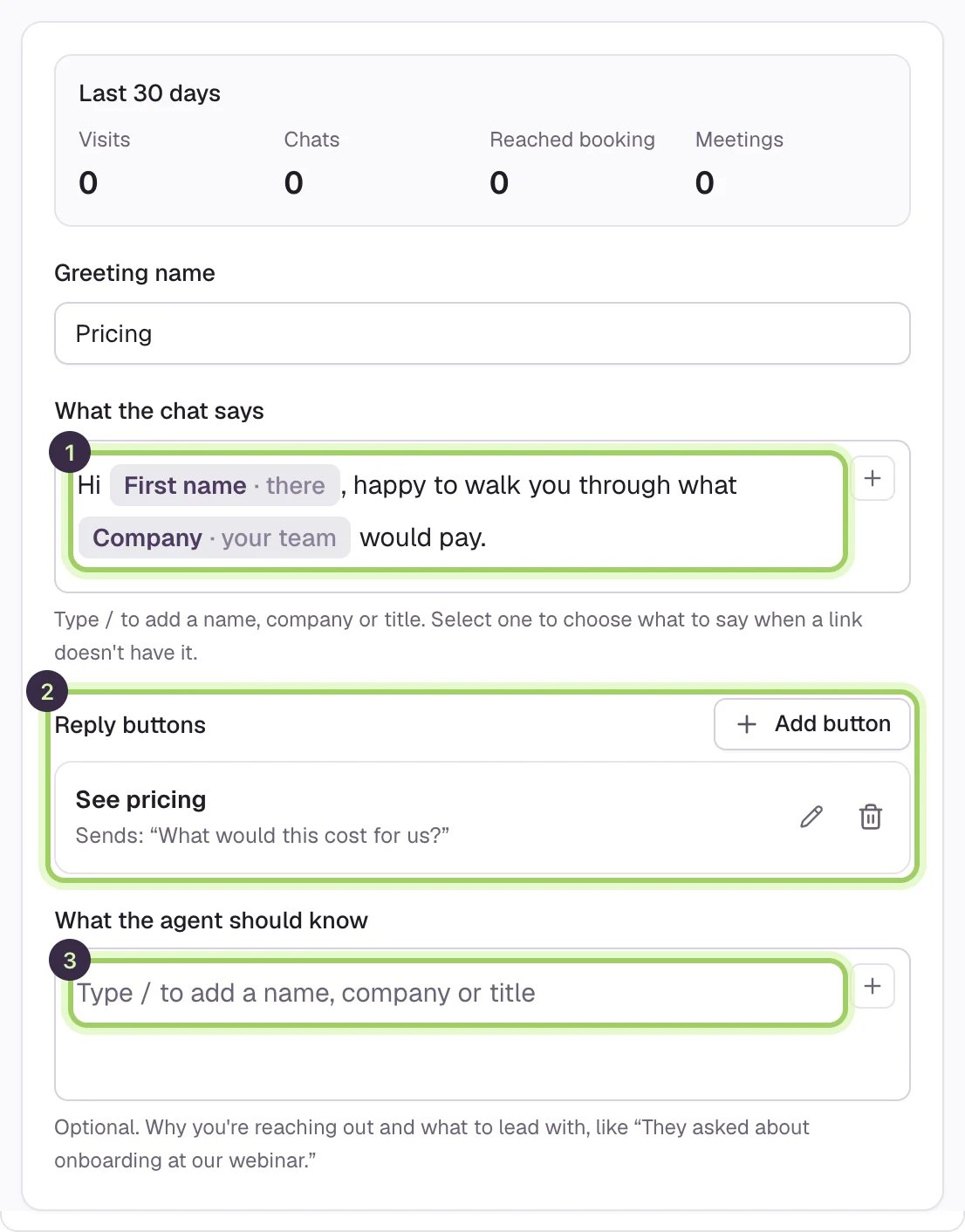 Open **Link Studio** and select the **Greetings** tab, then **Add greeting**. Each greeting shows how many links use it, its results, and its message with its buttons as the chat will show them. Select a greeting's name or pencil to open it.
You can also write a greeting from a link with **New greeting**. See [Make and share personal links](/link-studio/links).
Open **Link Studio** and select the **Greetings** tab, then **Add greeting**. Each greeting shows how many links use it, its results, and its message with its buttons as the chat will show them. Select a greeting's name or pencil to open it.
You can also write a greeting from a link with **New greeting**. See [Make and share personal links](/link-studio/links).
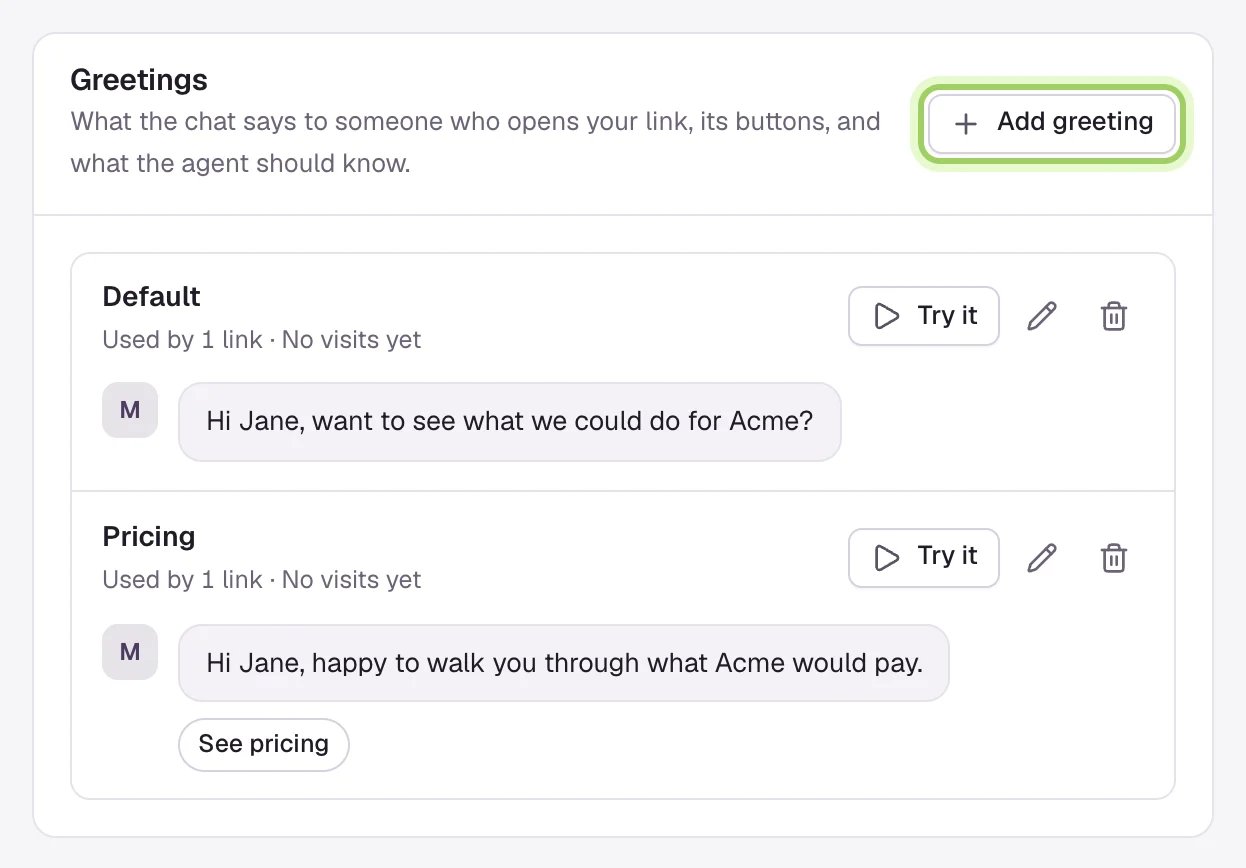 Give the greeting a **Greeting name**. Under **What the chat says**, write one line, and type `/` where a detail goes, or select **+**: **First name**, **Company**, **Job title** or **Last name**. Each one shows as a pill.
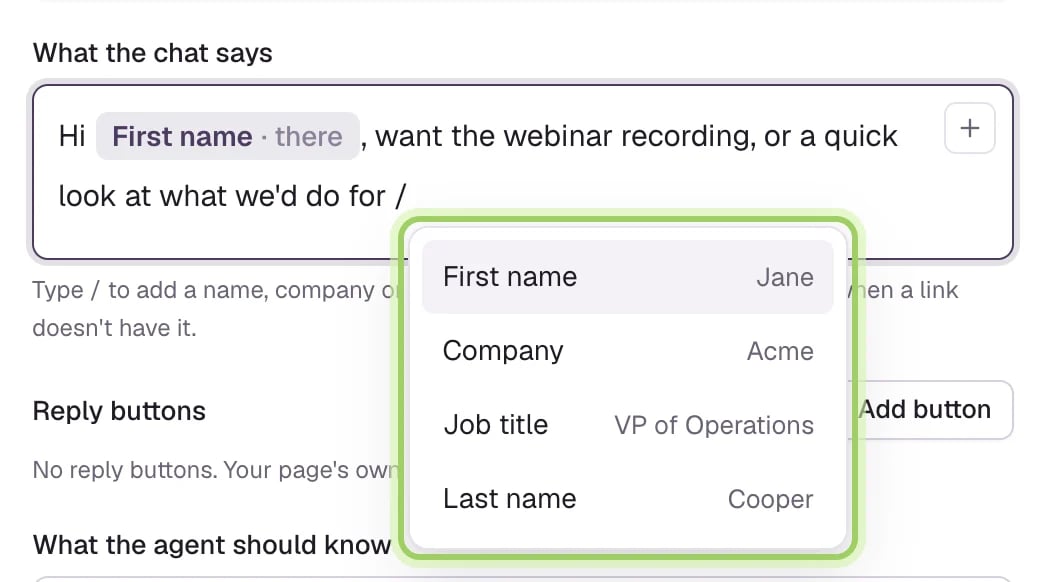 Select a pill to set what the chat says when a link doesn't carry that detail, such as "there" or "your team". Leave it empty to leave the word out, or select **Remove** to take the pill out.
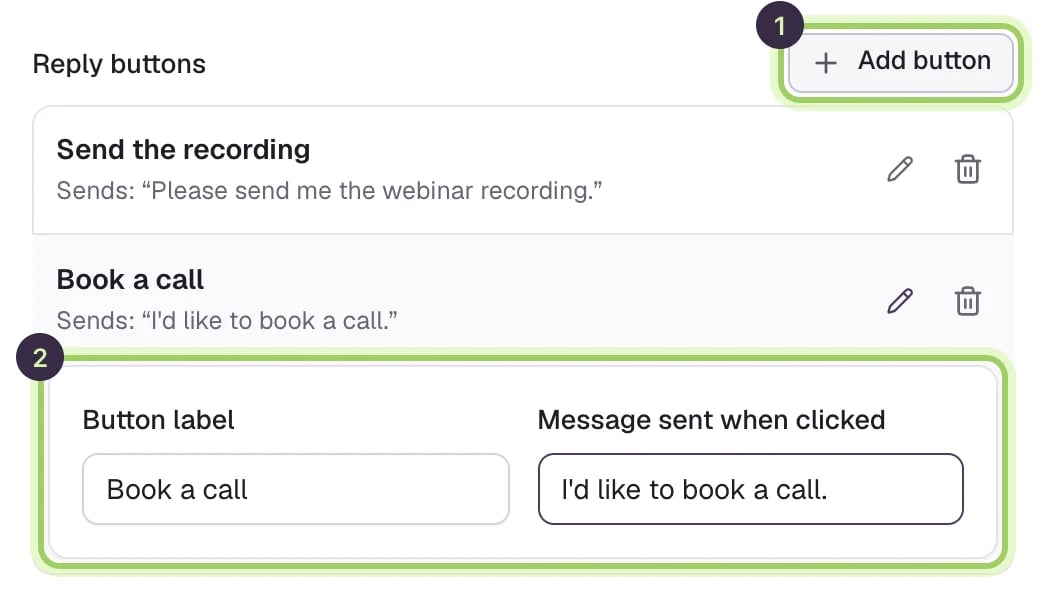
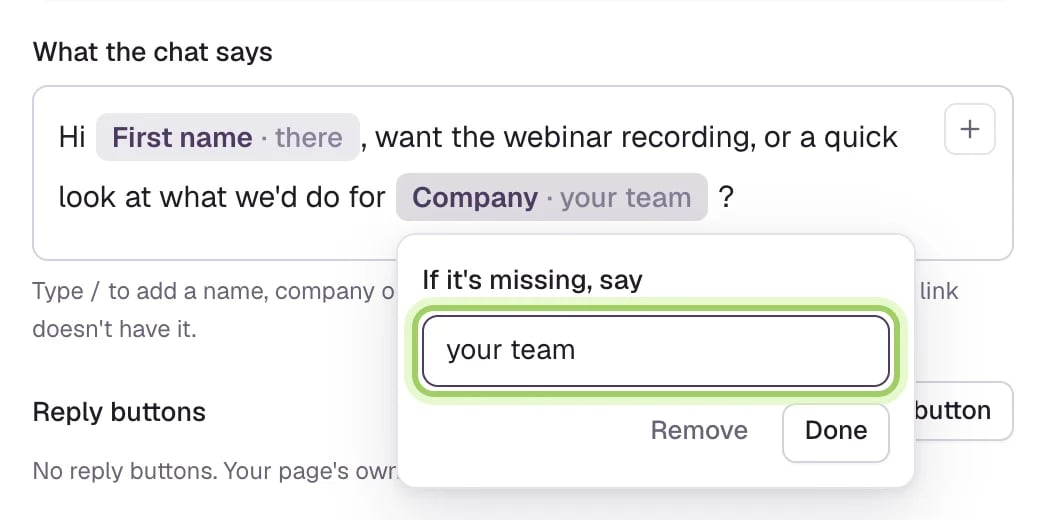 Under **Reply buttons**, select **Add button** (1). Give it a **Button label** and the **Message sent when clicked** (2). Select a button's pencil to change it, or its trash icon to remove it.
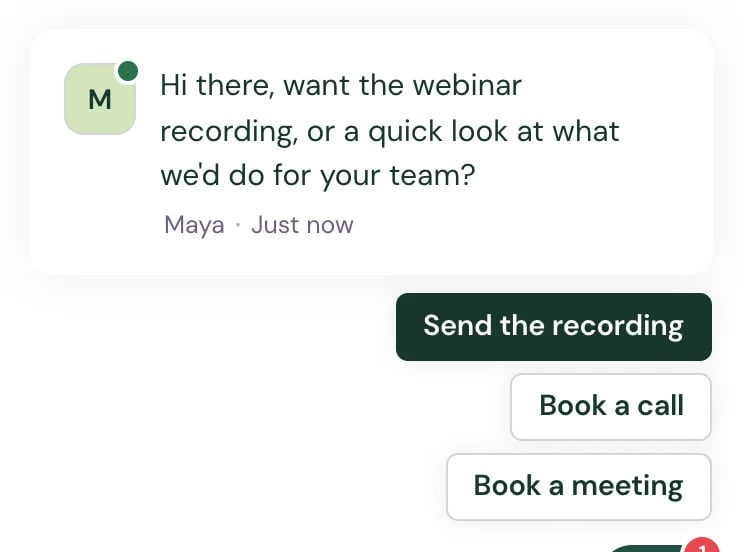
A greeting can have up to four. They replace your page's own buttons for people who open the link, and the chat's own booking button, such as **Book a meeting**, still shows after them when booking is set up. With none, **Reply buttons** reads **No reply buttons. Your page's own buttons show.**
Under **Reply buttons**, select **Add button** (1). Give it a **Button label** and the **Message sent when clicked** (2). Select a button's pencil to change it, or its trash icon to remove it.
A greeting can have up to four. They replace your page's own buttons for people who open the link, and the chat's own booking button, such as **Book a meeting**, still shows after them when booking is set up. With none, **Reply buttons** reads **No reply buttons. Your page's own buttons show.**
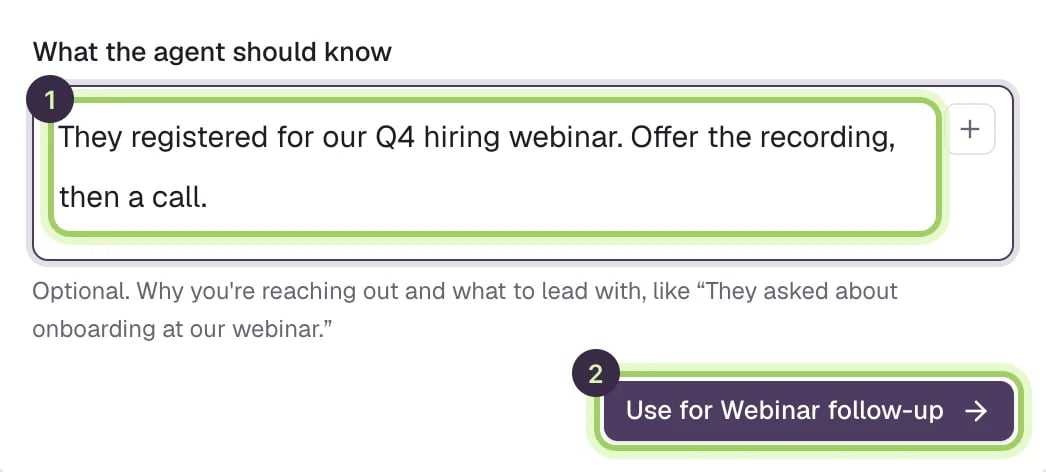
 **What the agent should know** (1) is optional. Write why you reached out and what to lead with, such as "They registered for our Q4 hiring webinar. Offer the recording, then a call." You can type `/` here too. The agent reads it, filled in, whenever someone is shown this greeting.
If you're writing the greeting for a link, select **Use for** your link (2) to attach it and go back to the link.
**What the agent should know** (1) is optional. Write why you reached out and what to lead with, such as "They registered for our Q4 hiring webinar. Offer the recording, then a call." You can type `/` here too. The agent reads it, filled in, whenever someone is shown this greeting.
If you're writing the greeting for a link, select **Use for** your link (2) to attach it and go back to the link.
 Select **Try it** on a greeting to show it in the chat on the right. Under **Preview as**, choose **No details** to check your fallback words.
 Select **Save changes**. A change to a greeting reaches every link that uses it, including emails you've already sent.
## Delete a greeting
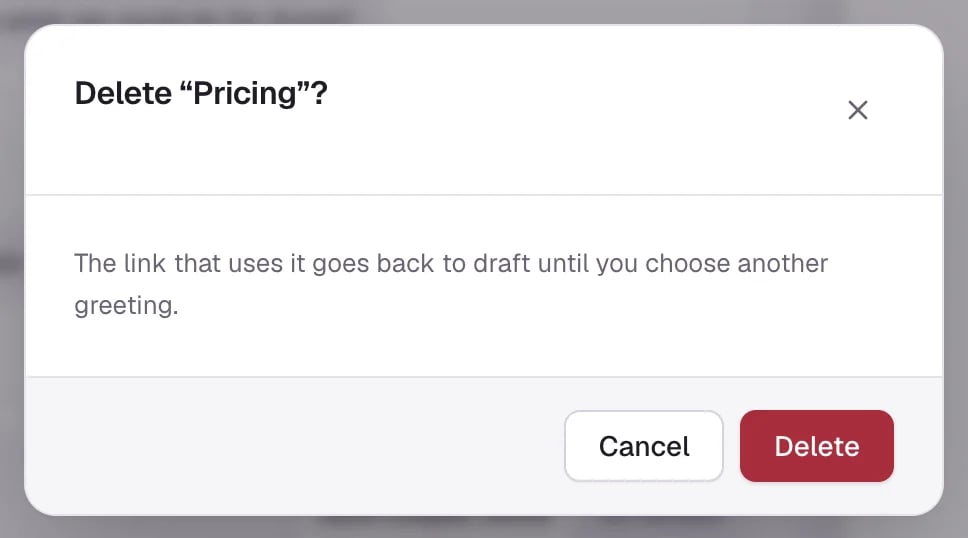
Select the greeting's trash icon. If links use it, Darwin asks first, and those links go back to draft until you choose another greeting. Select **Save changes** to make it final, or **Discard** to bring it back.
Select **Save changes**. A change to a greeting reaches every link that uses it, including emails you've already sent.
## Delete a greeting
Select the greeting's trash icon. If links use it, Darwin asks first, and those links go back to draft until you choose another greeting. Select **Save changes** to make it final, or **Discard** to bring it back.
 ## Good to know
* A pill with no fallback, for a detail the link doesn't carry, is left out with the space before it: "Hi", a **First name** pill and a comma read "Hi," for someone the link has no name for.
* A greeting is up to 200 characters, and the agent's note up to 500. A workspace can have up to 50 greetings.
* On the **Greetings** tab, results count the visits where that greeting was the one shown, so a link that changed greeting splits its numbers between them.
Give a link its greeting and copy it into your email.
See which greetings lead to chats and meetings.
This documentation is built and hosted on [Mintlify](https://mintlify.com), a developer documentation platform.
## Good to know
* A pill with no fallback, for a detail the link doesn't carry, is left out with the space before it: "Hi", a **First name** pill and a comma read "Hi," for someone the link has no name for.
* A greeting is up to 200 characters, and the agent's note up to 500. A workspace can have up to 50 greetings.
* On the **Greetings** tab, results count the visits where that greeting was the one shown, so a link that changed greeting splits its numbers between them.
Give a link its greeting and copy it into your email.
See which greetings lead to chats and meetings.
This documentation is built and hosted on [Mintlify](https://mintlify.com), a developer documentation platform.