> ## Documentation Index
> Fetch the complete documentation index at: https://docs.meetdarwin.ai/llms.txt
> Use this file to discover all available pages before exploring further.
# Send leads to your CRM and tools
> Integrations → Zapier: connect HubSpot, Salesforce, Pipedrive, Slack, Microsoft Teams, Mailchimp, ActiveCampaign or Klaviyo and send every lead from Darwin's chat with a ready-made Zap.
These connections run through Zapier: Darwin's Zapier app starts the Zap and the other app's Zapier integration does the work. You choose which fields go where. A two-step Zap (Darwin plus one action) works on Zapier's free plan; extra steps need a paid plan.
 ## Set up once
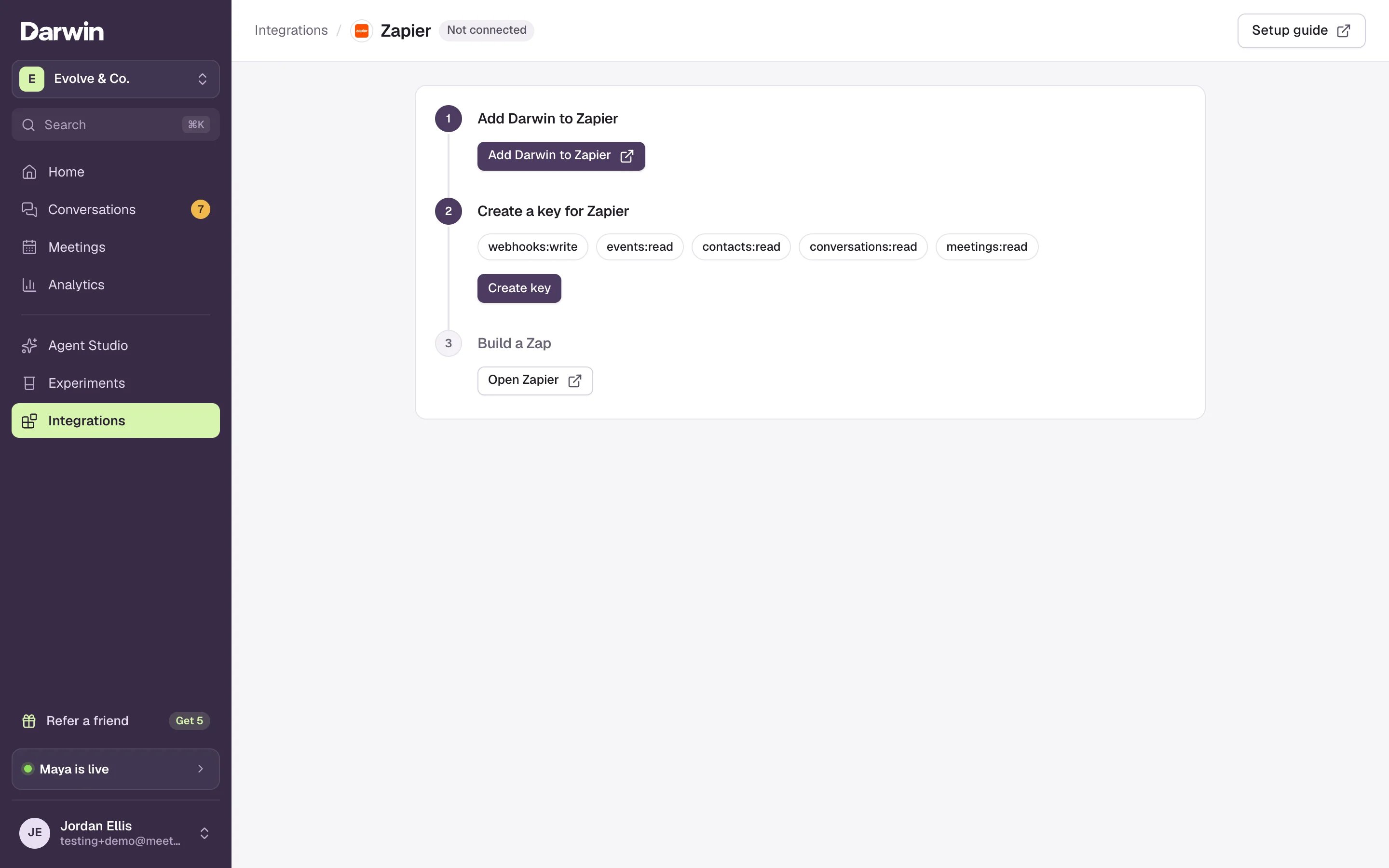
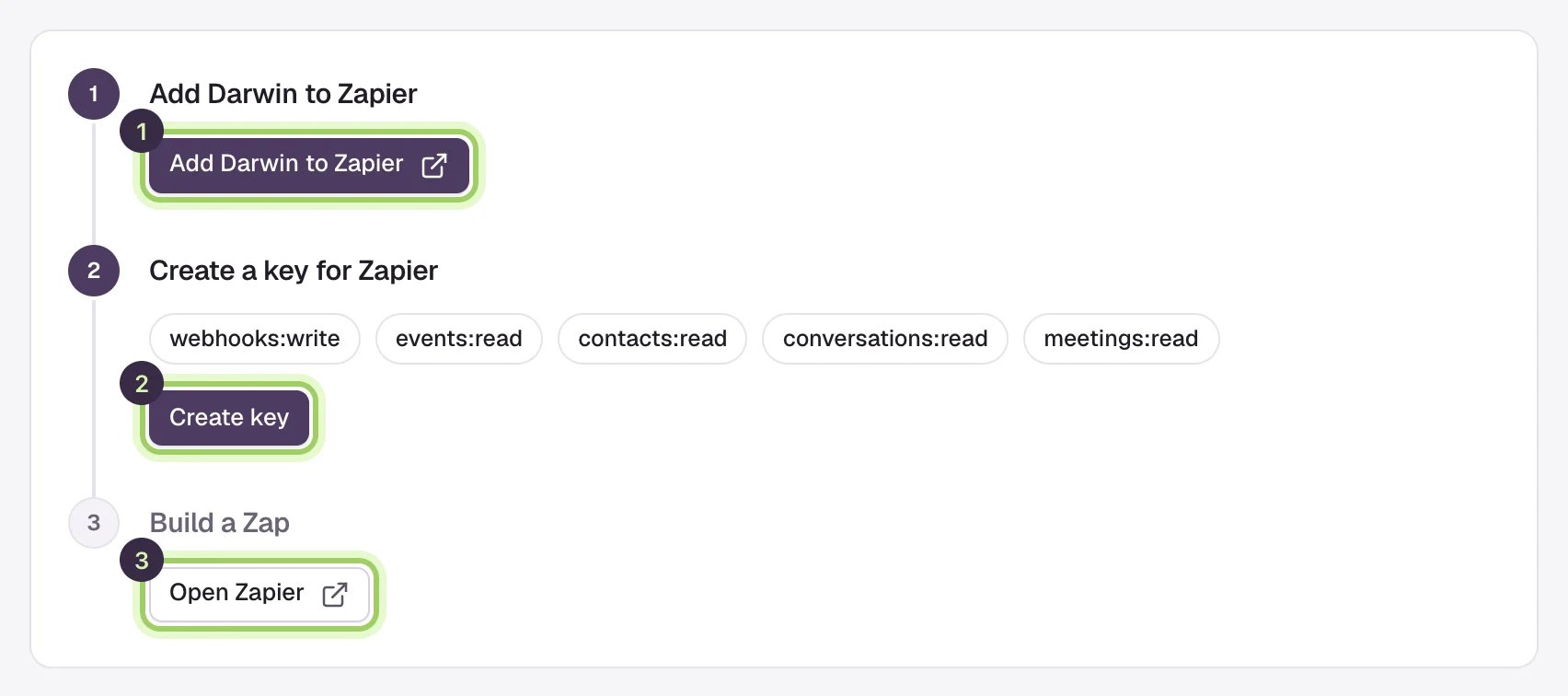
Open **Integrations → Zapier**, select **Add Darwin to Zapier** and accept the invite, then create a key for Zapier. [Connect Zapier](/integrations/zapier) walks through both.
## Set up once
Open **Integrations → Zapier**, select **Add Darwin to Zapier** and accept the invite, then create a key for Zapier. [Connect Zapier](/integrations/zapier) walks through both.
 In Zapier, create a Zap, choose **Darwin** and the trigger named in the recipe below, usually **New Lead**. Connect your Darwin account with the key and select **Test trigger** to load a sample.
Add the action from the recipe, map Darwin's fields, test it, and publish. A lead carries **Email**, **First name**, **Last name**, **Company** and **Phone** when the visitor gave them, plus **Page URL**, **Traffic source**, the UTM values, Darwin's grade and **Darwin url**, a link to the conversation.
## Pick your app
Each app has its own guide with the Zap to build and the fields to map.
New Lead → Create or Update Contact.
New Lead → Create Lead.
New Lead → Create Person.
Visitor Asked for a Person → Send Channel Message.
Visitor Asked for a Person → Send Channel Message.
New Lead → Add/Update Subscriber.
New Lead → Create or Update Contact.
New Lead → Create Or Update Profile.
Using another app? Any app on Zapier works the same way: start with a Darwin trigger, add that app's action and map the fields.
## Good to know
* Zaps act on leads from the moment you turn them on. Earlier leads are in **Conversations**, which you can export as a CSV.
* Preview conversations in **Agent Studio** never start a Zap. Test with a real chat on your website, or with the samples from **Test trigger**.
* Can't find Darwin in Zapier? Open the invite link from [Connect Zapier](/integrations/zapier) while signed in to the Zapier account you build Zaps in.
All Darwin triggers, actions and the key setup.
Find leads and copy a follow-up list.
This documentation is built and hosted on [Mintlify](https://mintlify.com), a developer documentation platform.
In Zapier, create a Zap, choose **Darwin** and the trigger named in the recipe below, usually **New Lead**. Connect your Darwin account with the key and select **Test trigger** to load a sample.
Add the action from the recipe, map Darwin's fields, test it, and publish. A lead carries **Email**, **First name**, **Last name**, **Company** and **Phone** when the visitor gave them, plus **Page URL**, **Traffic source**, the UTM values, Darwin's grade and **Darwin url**, a link to the conversation.
## Pick your app
Each app has its own guide with the Zap to build and the fields to map.
New Lead → Create or Update Contact.
New Lead → Create Lead.
New Lead → Create Person.
Visitor Asked for a Person → Send Channel Message.
Visitor Asked for a Person → Send Channel Message.
New Lead → Add/Update Subscriber.
New Lead → Create or Update Contact.
New Lead → Create Or Update Profile.
Using another app? Any app on Zapier works the same way: start with a Darwin trigger, add that app's action and map the fields.
## Good to know
* Zaps act on leads from the moment you turn them on. Earlier leads are in **Conversations**, which you can export as a CSV.
* Preview conversations in **Agent Studio** never start a Zap. Test with a real chat on your website, or with the samples from **Test trigger**.
* Can't find Darwin in Zapier? Open the invite link from [Connect Zapier](/integrations/zapier) while signed in to the Zapier account you build Zaps in.
All Darwin triggers, actions and the key setup.
Find leads and copy a follow-up list.
This documentation is built and hosted on [Mintlify](https://mintlify.com), a developer documentation platform.