> ## Documentation Index
> Fetch the complete documentation index at: https://docs.meetdarwin.ai/llms.txt
> Use this file to discover all available pages before exploring further.
# Chrome plugin
> Darwin's Chrome plugin: see each page's visitors, conversations, leads and meetings, its traffic sources and opening tests in Chrome's side panel while you browse your website.
Open any page of your website, click Darwin in Chrome's toolbar, and a side panel shows how that page is doing: its results, where its visitors come from, and its opening tests.
 Open the [Darwin AI Website Chat listing](https://chromewebstore.google.com/detail/pognhgoljodbanapkeekfdjpnfgjheon) in the Chrome Web Store and select **Add to Chrome**. Chrome 116 or newer is needed. Pin Darwin to the toolbar so it's easy to reach.
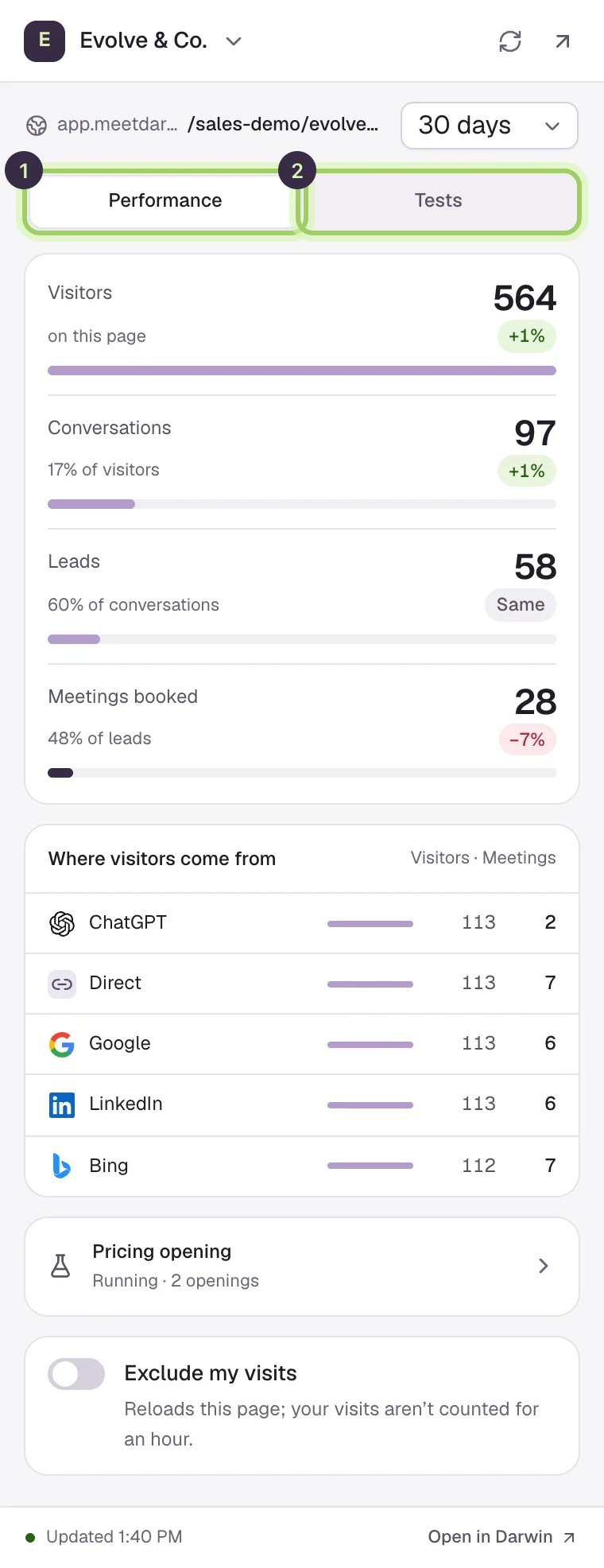
Open a page of your website and click Darwin in the toolbar. Select **Connect Darwin** and sign in to Darwin in the tab that opens. You sign in once: Darwin stays connected for 90 days of use.
Open the [Darwin AI Website Chat listing](https://chromewebstore.google.com/detail/pognhgoljodbanapkeekfdjpnfgjheon) in the Chrome Web Store and select **Add to Chrome**. Chrome 116 or newer is needed. Pin Darwin to the toolbar so it's easy to reach.
Open a page of your website and click Darwin in the toolbar. Select **Connect Darwin** and sign in to Darwin in the tab that opens. You sign in once: Darwin stays connected for 90 days of use.
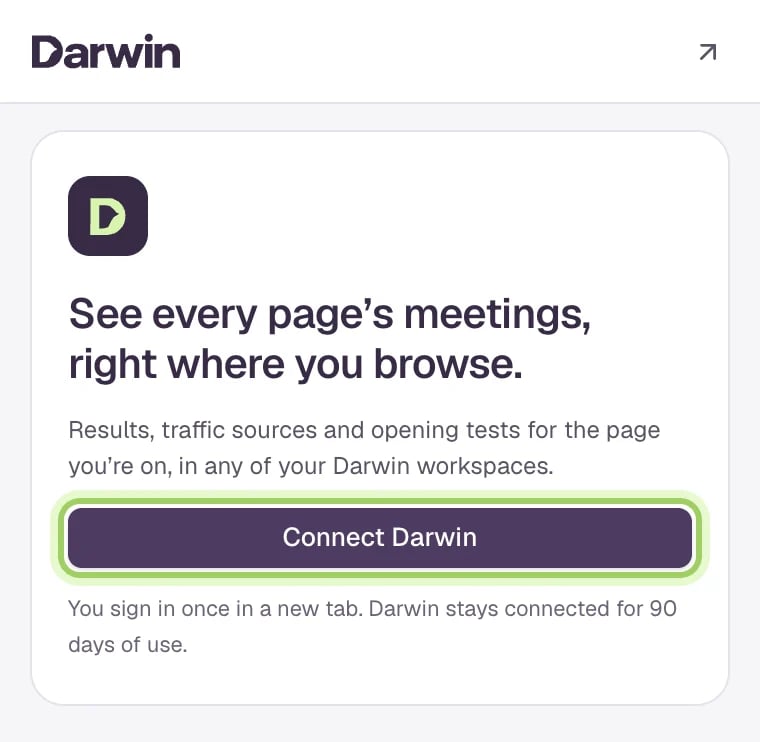 **Performance** (1) shows the page's **Visitors**, **Conversations**, **Leads** and **Meetings booked**, each with its change on the period before. Change the period at the top: 7, 14, 30 or 90 days. **Where visitors come from** lists each source with its visitors and meetings.
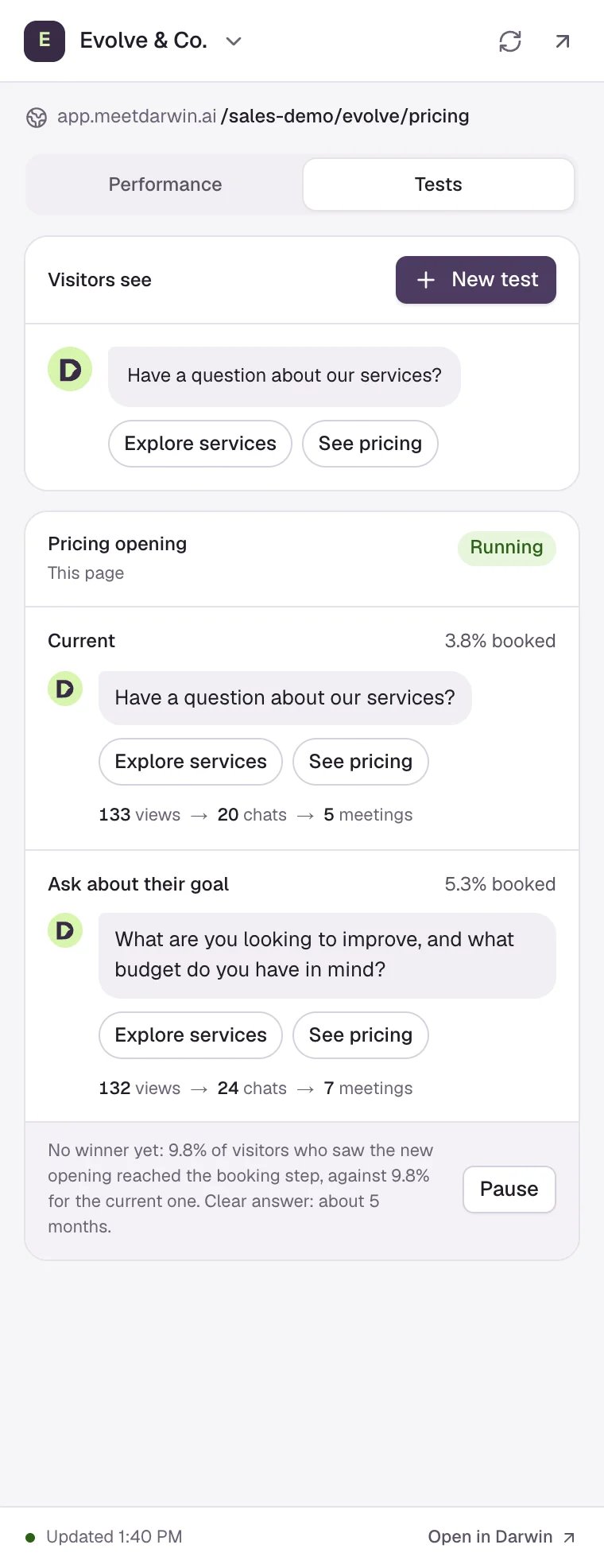
**Tests** (2) shows the opening visitors see on this page and each test that runs here, with its views, chats, meetings and booking rate. Select **Pause** or **Resume** to control a test.
To try a new opening, select **New test**, write the **Opening message** and one to four **Reply buttons**, then **Review and launch**.
**Performance** (1) shows the page's **Visitors**, **Conversations**, **Leads** and **Meetings booked**, each with its change on the period before. Change the period at the top: 7, 14, 30 or 90 days. **Where visitors come from** lists each source with its visitors and meetings.
**Tests** (2) shows the opening visitors see on this page and each test that runs here, with its views, chats, meetings and booking rate. Select **Pause** or **Resume** to control a test.
To try a new opening, select **New test**, write the **Opening message** and one to four **Reply buttons**, then **Review and launch**.
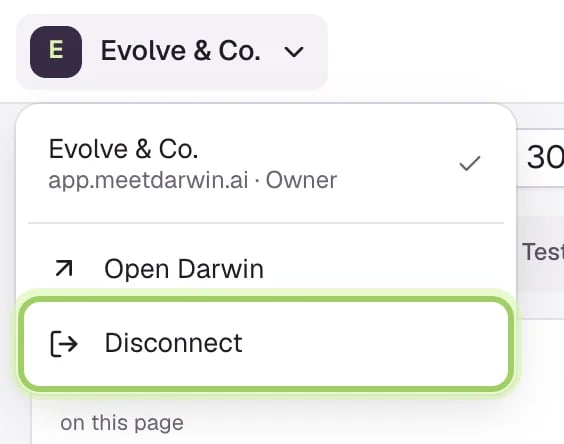
 Select the workspace name at the top to switch to another of your Darwin workspaces. The same menu has **Open Darwin** and **Disconnect**.
 ## Exclude your own visits
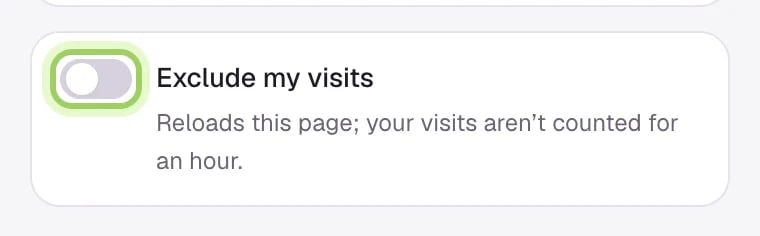
On a page where Darwin is installed, turn on **Exclude my visits** at the bottom of **Performance**. The page reloads, and your visits aren't counted for an hour.
## Exclude your own visits
On a page where Darwin is installed, turn on **Exclude my visits** at the bottom of **Performance**. The page reloads, and your visits aren't counted for an hour.
 ## Good to know
* Members can see results and tests. Only owners and admins can start, pause or resume a test.
* Only the page's address is sent to Darwin. The panel shows summaries, never transcripts or contact details.
* **Disconnect** signs the extension out. Resetting your Darwin password does too.
* Chrome's own pages, such as settings and the Web Store, can't be read.
Ask your AI assistant about the chat.
Everything Darwin connects to.
This documentation is built and hosted on [Mintlify](https://mintlify.com), a developer documentation platform.
## Good to know
* Members can see results and tests. Only owners and admins can start, pause or resume a test.
* Only the page's address is sent to Darwin. The panel shows summaries, never transcripts or contact details.
* **Disconnect** signs the extension out. Resetting your Darwin password does too.
* Chrome's own pages, such as settings and the Web Store, can't be read.
Ask your AI assistant about the chat.
Everything Darwin connects to.
This documentation is built and hosted on [Mintlify](https://mintlify.com), a developer documentation platform.