> ## Documentation Index
> Fetch the complete documentation index at: https://docs.meetdarwin.ai/llms.txt
> Use this file to discover all available pages before exploring further.
# All integrations
> Integrations: connect Darwin to your website, calendar, video calls, Zapier, the API and AI assistants. Each card shows whether it's connected.
Everything Darwin connects to is on one screen. The two cards at the top tell you whether Darwin is on your website and whether visitors can book a meeting.
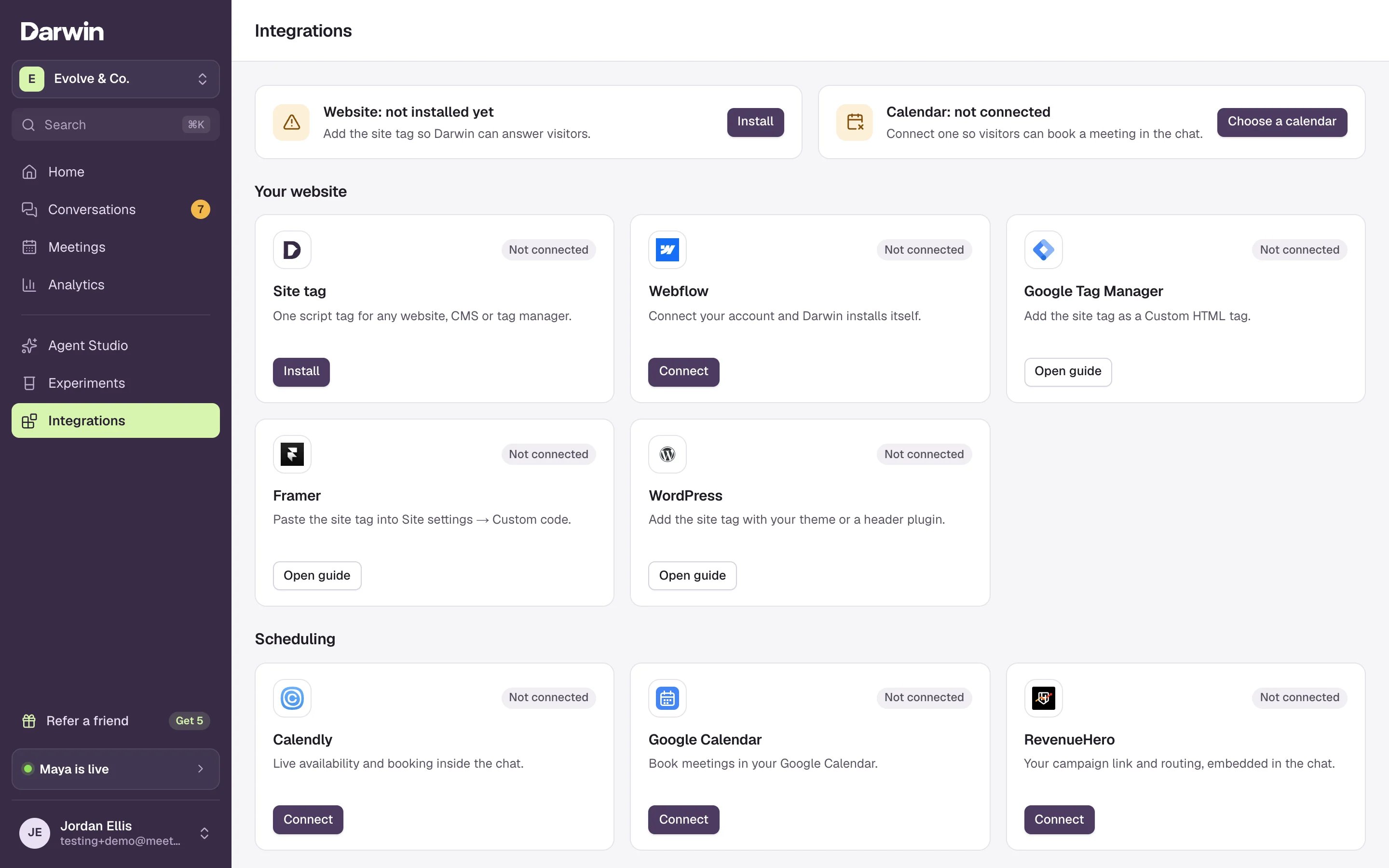 Each card shows **Connected**, **Not connected** or a step to finish, such as **Finish connection** or **Reconnect needed**. Select a card's button to open its setup page; **Setup guide** at the top of that page opens the matching guide here.
## Your website
Where Darwin runs. Install it once and every page is covered.
The site tag works on any website, CMS or tag manager.
Connect your account and Darwin installs itself.
Add the site tag as a Custom HTML tag.
Paste the site tag into your site's custom code.
Add the site tag with your theme or a header plugin.
## Scheduling
Where meetings get booked. One provider handles new bookings at a time.
Live availability and booking inside the chat.
Book meetings straight into your Google Calendar.
Your campaign link and routing, inside the chat.
## Video calls
Where the meeting happens. New bookings get the provider's link.
Comes with Google Calendar. Nothing extra to connect.
Zoom links on your Google Calendar bookings.
## CRM & automation
Where leads go next.
Send leads, meetings and requests for a person to thousands of apps.
Ready-made Zaps for HubSpot, Salesforce, Slack and more.
Keys, webhooks and website identity for your own code.
Through Zapier, with a guide for each: [HubSpot](/integrations/hubspot), [Salesforce](/integrations/salesforce), [Pipedrive](/integrations/pipedrive), [Slack](/integrations/slack), [Microsoft Teams](/integrations/microsoft-teams), [Mailchimp](/integrations/mailchimp), [ActiveCampaign](/integrations/activecampaign) and [Klaviyo](/integrations/klaviyo).
## AI assistants and Chrome
Work with Darwin from the tools you already use.
Ask about your chat's results and let the assistant update the agent.
See each page's results and tests while you browse your site.
## Good to know
* Only workspace owners and admins can connect or disconnect an integration. Members can see the cards.
* Google Meet and the Chrome plugin have no card on this screen: Meet is chosen in the Google Calendar booking rules, and the plugin is installed from the Chrome Web Store.
This documentation is built and hosted on [Mintlify](https://mintlify.com), a developer documentation platform.
Each card shows **Connected**, **Not connected** or a step to finish, such as **Finish connection** or **Reconnect needed**. Select a card's button to open its setup page; **Setup guide** at the top of that page opens the matching guide here.
## Your website
Where Darwin runs. Install it once and every page is covered.
The site tag works on any website, CMS or tag manager.
Connect your account and Darwin installs itself.
Add the site tag as a Custom HTML tag.
Paste the site tag into your site's custom code.
Add the site tag with your theme or a header plugin.
## Scheduling
Where meetings get booked. One provider handles new bookings at a time.
Live availability and booking inside the chat.
Book meetings straight into your Google Calendar.
Your campaign link and routing, inside the chat.
## Video calls
Where the meeting happens. New bookings get the provider's link.
Comes with Google Calendar. Nothing extra to connect.
Zoom links on your Google Calendar bookings.
## CRM & automation
Where leads go next.
Send leads, meetings and requests for a person to thousands of apps.
Ready-made Zaps for HubSpot, Salesforce, Slack and more.
Keys, webhooks and website identity for your own code.
Through Zapier, with a guide for each: [HubSpot](/integrations/hubspot), [Salesforce](/integrations/salesforce), [Pipedrive](/integrations/pipedrive), [Slack](/integrations/slack), [Microsoft Teams](/integrations/microsoft-teams), [Mailchimp](/integrations/mailchimp), [ActiveCampaign](/integrations/activecampaign) and [Klaviyo](/integrations/klaviyo).
## AI assistants and Chrome
Work with Darwin from the tools you already use.
Ask about your chat's results and let the assistant update the agent.
See each page's results and tests while you browse your site.
## Good to know
* Only workspace owners and admins can connect or disconnect an integration. Members can see the cards.
* Google Meet and the Chrome plugin have no card on this screen: Meet is chosen in the Google Calendar booking rules, and the plugin is installed from the Chrome Web Store.
This documentation is built and hosted on [Mintlify](https://mintlify.com), a developer documentation platform.