> ## Documentation Index
> Fetch the complete documentation index at: https://docs.meetdarwin.ai/llms.txt
> Use this file to discover all available pages before exploring further.

# Install Darwin on your website

> Allow your domain, add the embed, and verify the visitor experience.
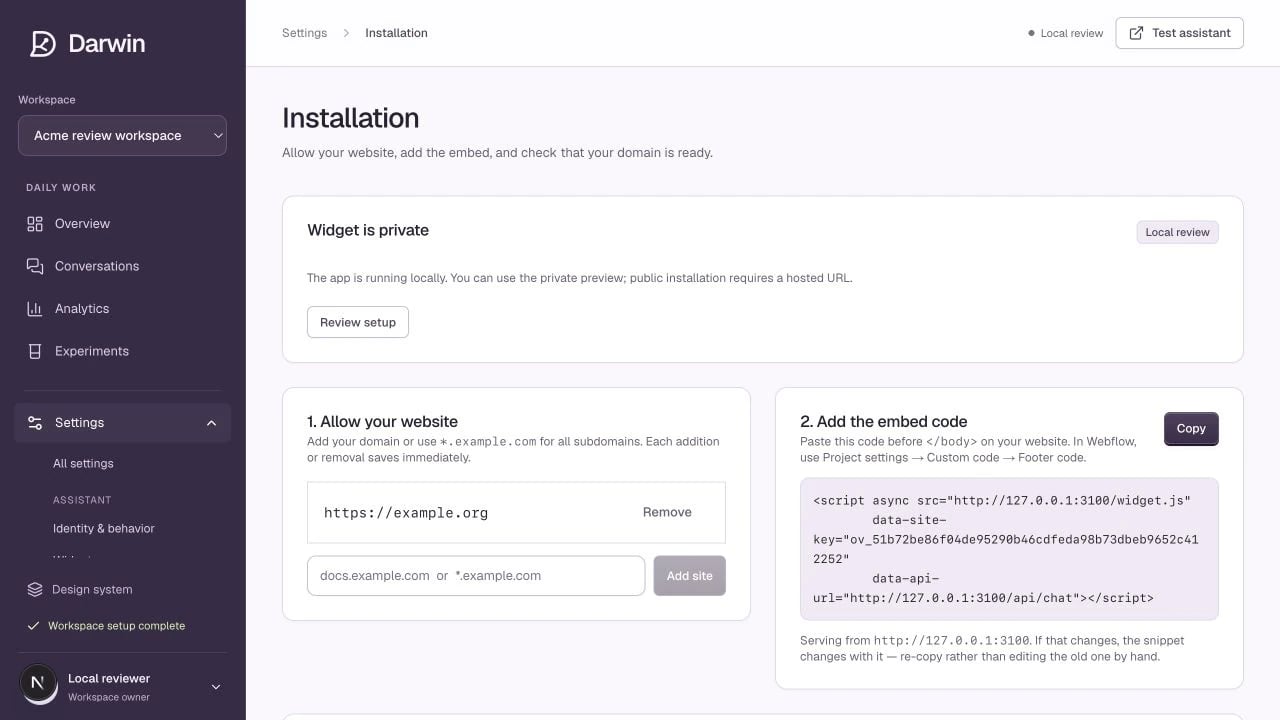
<div className="darwin-location"><strong>Find it in Darwin</strong> Settings → Installation <a href="https://app.meetdarwin.ai/admin/settings/installation">Open this screen ↗</a></div>

<Frame caption="Installation keeps allowed websites and the workspace embed in one place.">
  <img src="https://mintcdn.com/meet-darwin/j9QNY_OzVc2Uv_0E/images/screenshots/installation.webp?fit=max&auto=format&n=j9QNY_OzVc2Uv_0E&q=85&s=a9a2b5dad616e4bca3083fd2820c2ff0" alt="Installation keeps allowed websites and the workspace embed in one place." width="1280" height="720" data-path="images/screenshots/installation.webp" />
</Frame>

<p className="darwin-screenshot-note">Screenshots use a demonstration workspace. Your data, plan, and activation status may differ.</p>

You need permission to edit the selected workspace and to publish code on your website. Complete [the launch checklist](/installation/launch-checklist) first.

<Steps>
  <Step title="Allow the website">
    Add the domain where the chat will run under **Allow your website**. Include the actual hostname visitors use. `www.example.com` and `example.com` are different hosts. Use a wildcard such as `*.example.com` only if every matching subdomain should be allowed.

    Each addition or removal saves immediately. Use the domain check on this screen to confirm that the target URL is allowed.
  </Step>

  <Step title="Copy your workspace’s embed">
    Copy the snippet shown in Installation. It contains your workspace’s public site key. Do not copy a snippet from another workspace or from a localhost preview.

    ```html theme={null}
    <script async src="https://app.meetdarwin.ai/widget.js"
      data-site-key="YOUR_WORKSPACE_SITE_KEY"
      data-api-url="https://app.meetdarwin.ai/api/chat"></script>
    ```

    Replace the example with the exact snippet from your own account. The public site key belongs in the website; private account or API credentials do not.
  </Step>

  <Step title="Publish once">
    Place the snippet before the closing `</body>` tag or in your website builder’s site-wide footer code. Install it once. Check for an older chat embed or a second copy in a tag manager before publishing.
  </Step>

  <Step title="Verify the installation">
    Use **Verify installation** where available, then open the public website in a fresh browser session. Check the launcher, opening, response, calendar, and a mobile page.
  </Step>
</Steps>

## What the verification can tell you

The installation check looks for the expected embed in the page’s returned HTML. A tag manager or other client-side injection may not be visible to that check. Always verify the actual visitor experience too.

A domain allowance does not make a workspace live. If activation is unavailable or the workspace is disabled, the script can exist without a usable public assistant.

[Widget not appearing? Follow this checklist →](/help/widget-not-showing)
