> ## Documentation Index
> Fetch the complete documentation index at: https://docs.meetdarwin.ai/llms.txt
> Use this file to discover all available pages before exploring further.
# Ask Darwin in the app
> Darwin's in-app assistant: open the chat button at the bottom right to ask how something works, check results, add knowledge pages, change the opening's buttons or the chat's look, check your installation, or pause the chat.
Find it in Darwin The chat button at the bottom right of any screen Open Darwin ↗
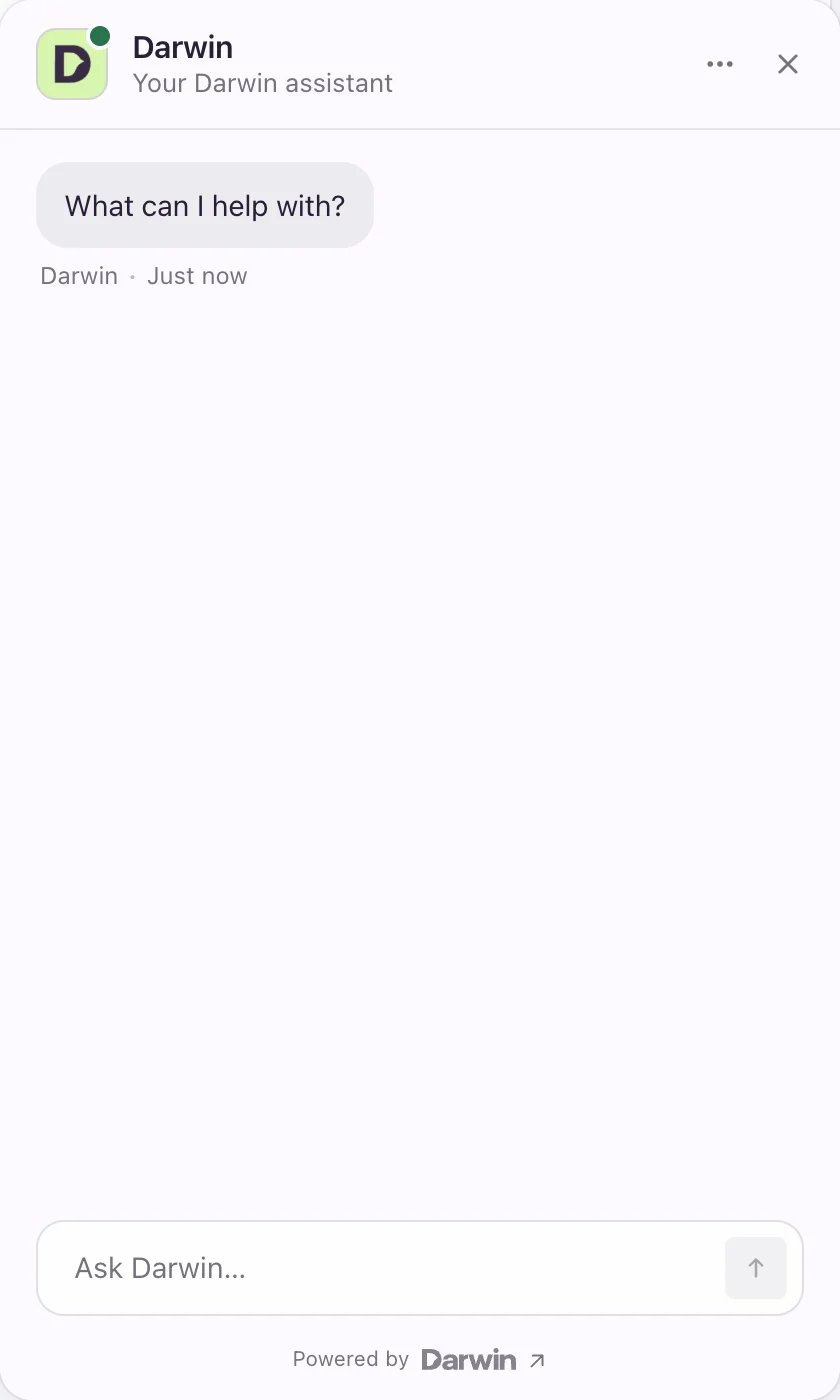
Darwin has its own assistant inside the app. Ask it a question in plain words and it answers from these docs and your workspace, or makes the change for you.
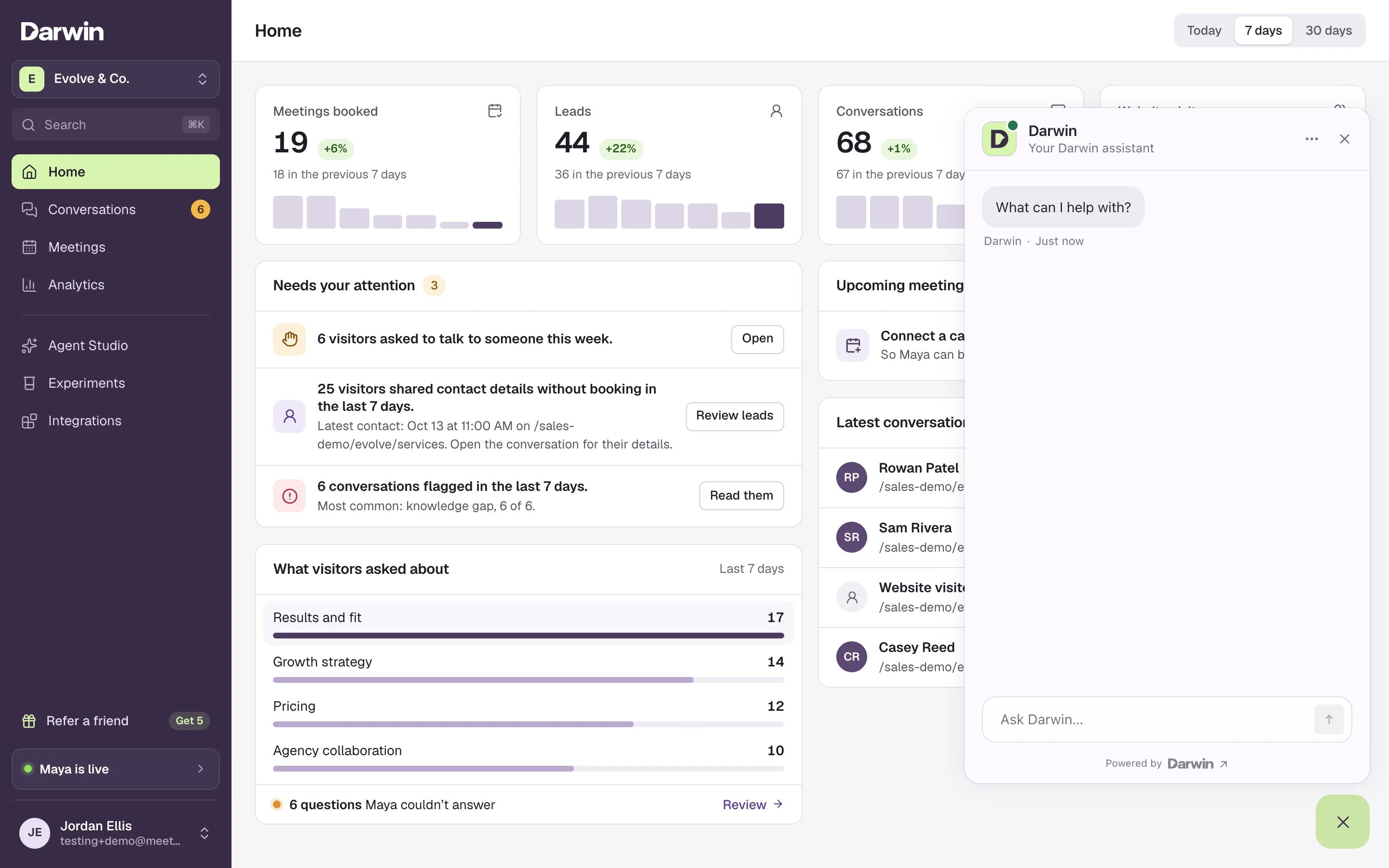
Select the chat button at the bottom right of the screen. Before you go live, you can also select **Ask Darwin** on Home or **Not live yet** in the sidebar.
Type in **Ask Darwin…** and press Enter. For example:
* "How did the chat do this week?"
* "Show me the latest conversations from people who asked for a person."
* "Add our new pricing page to the knowledge."
* "Change the buttons under the opening to See pricing and Book a demo."
* "Is the chat installed on our website?"
Darwin saves most changes straight away and says what it did in the chat. When something is easier to do yourself, it highlights the control on screen; select it to go there.
## What Darwin can help with
| Ask about | What Darwin does |
| - | - |
| How Darwin works | Answers from these docs and links the guide. |
| Results | Sums up performance, Home's numbers and recent conversations, and reads a conversation with you. |
| Knowledge | Lists the pages your agent knows, adds website pages, and removes pages after saying which ones. |
| The opening | Replaces the reply buttons under the opening, up to 4. |
| The chat's look | Changes the chat's appearance settings. |
| Your calendar | Checks the calendar connection and changes the Calendly meeting type. |
| Your website | Checks whether the site tag is installed. |
| Turning the chat on or off | Pauses or restarts the chat on your website, only when you ask it to. |
During setup, Darwin also asks for your agent's name and voice, writes the opening line for you to approve, and walks you through each step. See [Set up with Darwin's help](/getting-started/quickstart).
## Good to know
* Darwin's assistant is for owners and admins. It doesn't open inside Agent Studio; use it from any other screen.
* It can't create or edit chat buttons on your website, or edit your unsaved Agent Studio drafts. Use [Agent Studio → Buttons](/assistant/chat-buttons) and the Studio tabs for those.
* It doesn't take calendar logins or paste install code into the chat. For those, it points you to the right screen.
* Your conversation with Darwin is saved, so you can pick it up later.
The numbers and the conversations that need you.When you'd rather talk to a person.
This documentation is built and hosted on [Mintlify](https://mintlify.com), a developer documentation platform.