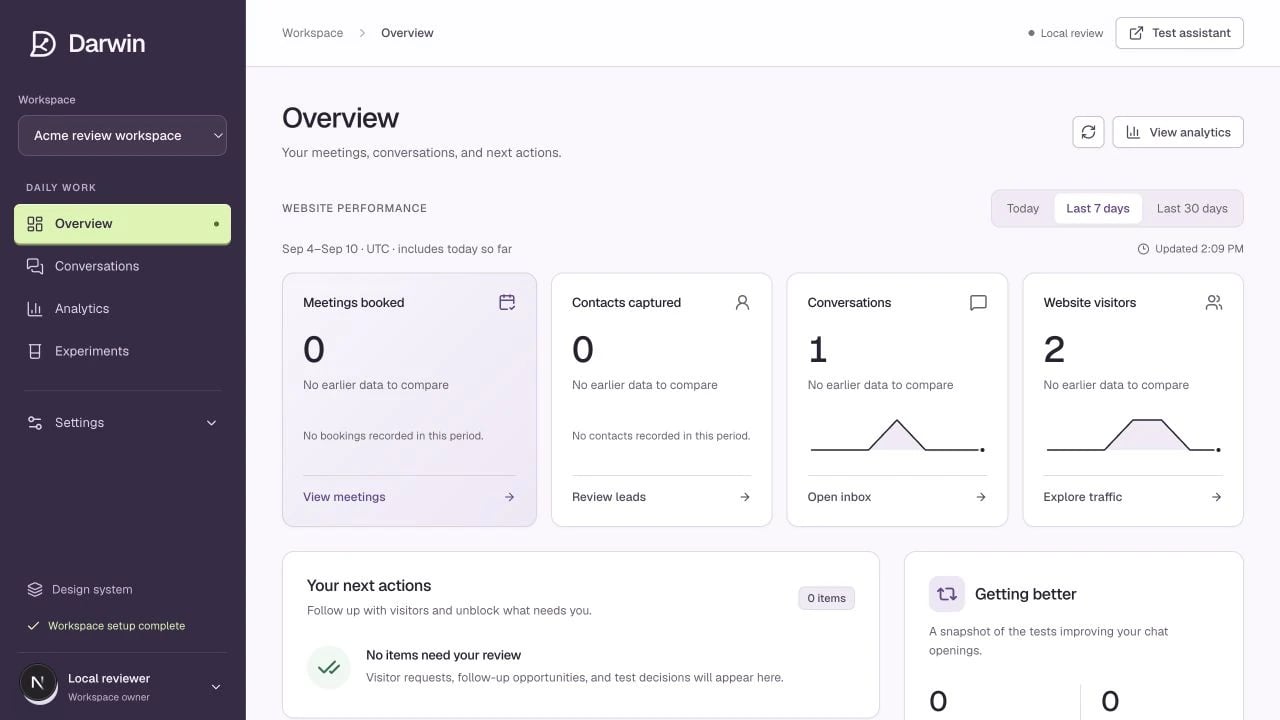
Screenshots use a demonstration workspace. Your data, plan, and activation status may differ.
## Daily work | Screen | Use it to | | ----------------- | ----------------------------------------------------------------------------------------- | | **Overview** | See meetings, contacts, conversations, traffic, and your next actions. | | **Conversations** | Read transcripts and find booked meetings or visitors who left contact details. | | **Analytics** | Explore conversion, pages, sources, conversation quality, and test impact. | | **Experiments** | See the automation state, review tests, explore page openings, and inspect past outcomes. | ## Settings Expand **Settings** in the sidebar. **All settings** gives you a map of the available controls. | Assistant settings | What changes here | | ----------------------- | ------------------------------------------------------------- | | **Identity & behavior** | Name, welcome experience, tone, instructions, and guardrails. | | **Widget appearance** | Colors, typography, avatar, shape, layout, and motion. | | **Knowledge** | Website sources, readable page content, and business context. | | **Chat openings** | Default teaser, reply buttons, timing, and page exclusions. | | **Scheduling** | The public calendar destination. | | **Automation** | Automatic test launches and winner publication. | | Workspace settings | What changes here | | ------------------ | ---------------------------------------------------------------------- | | **General** | Organization name and additional workspaces. | | **Team & access** | Invitation links and workspace membership. | | **Installation** | Allowed websites, embed code, and installation checks. | | **Plan & usage** | Subscription, included meetings, usage, payment details, and invoices. | Use the **Workspace** selector to switch organizations. Check it before making changes: settings and data belong to the selected workspace. **Test assistant** opens a private place to check your assistant. On a small screen, open the navigation menu to reach the same sections. A disabled control can mean your [role is view-only](/account/team), not that the feature is missing.