> ## Documentation Index
> Fetch the complete documentation index at: https://docs.meetdarwin.ai/llms.txt
> Use this file to discover all available pages before exploring further.
# Create your account
> Choose a plan, verify your email, and add your payment details.
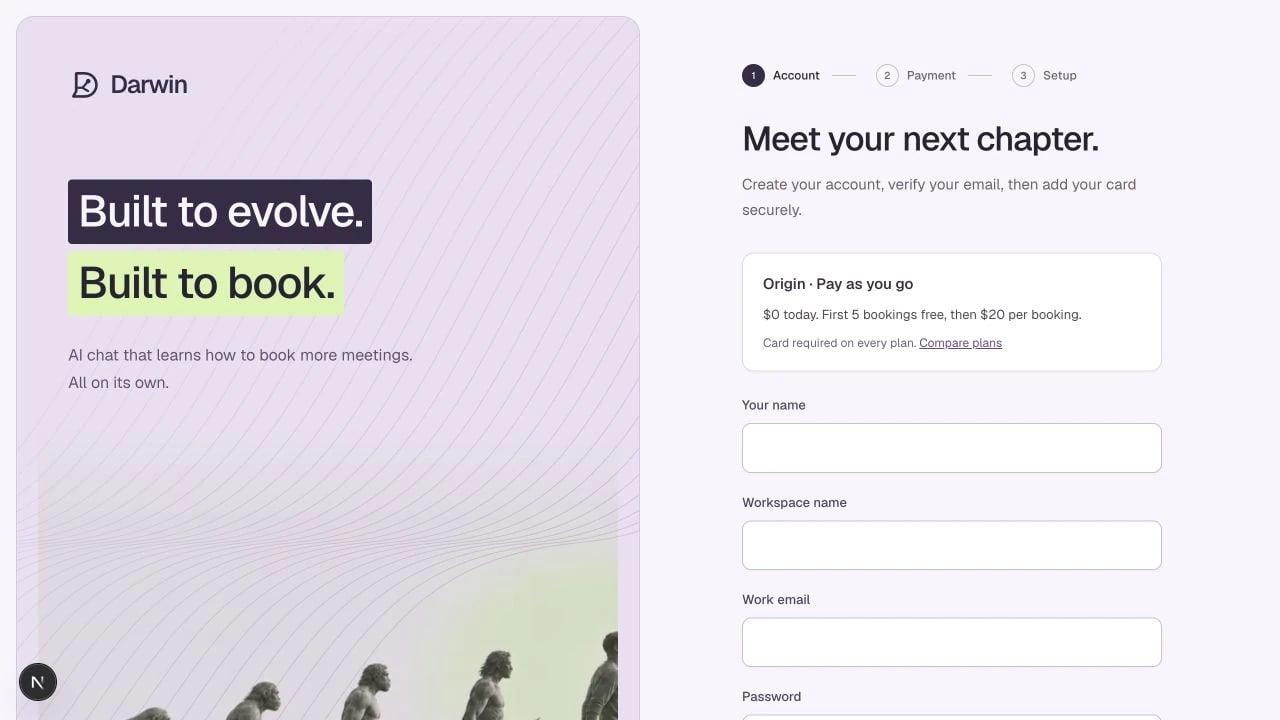
Screenshots use a demonstration workspace. Your data, plan, and activation status may differ.
Choose a plan at [meetdarwin.ai/pricing](https://www.meetdarwin.ai/pricing). **Start for free** selects Origin. A paid-plan button carries your chosen plan and monthly or annual billing schedule into signup.
Complete the signup form with your name, work email, organization, and password. Use an email address you can access. If you already have an account, use **Log in** instead of creating a duplicate.
When **Continue with Google** is available to your account, you can use your Google identity instead. Your selected plan is preserved. Google sign-in is currently limited to approved testers; [learn about signing in](/account/login-and-security).
Open the Darwin verification email and follow its link. Complete the confirmation on Darwin’s account page, then continue to payment. If the link expires, request a new verification email and use the newest message.
Review the plan, included bookings, optimization limit, and billing schedule. Select **Confirm plan & add card** to open secure checkout. Return to Darwin after completing checkout.
Origin requires a card but has no monthly fee. Your workspace’s first five bookings are free; later bookings cost \$20 each. Paid plans charge the base subscription fee and include a monthly booking allowance. [See all plans](/account/plans).
After Darwin confirms checkout, continue to the guided workspace setup. Closing checkout early or visiting a success URL does not complete payment setup.
## If you cannot continue
| What you see | What to do |
| ------------------------------------- | ------------------------------------------------------------------------------------------------------------------------ |
| An account already exists | Log in or [reset your password](/account/login-and-security). |
| No verification email | Check spam, confirm the address, and request a fresh email. |
| Verification link is expired or used | Request a new link. Do not keep retrying an older message. |
| Payment still required after checkout | Return from checkout, reload once, and check the plan shown. Avoid submitting another payment until the status is clear. |
| Signups or activation are unavailable | Customer launch is not enabled for this deployment yet. This is not an incorrect password or card. |
| Preview checkout / Test cards only | You are in a test environment. Do not enter a real card. |
Adding a website to your account does not install the widget or make your assistant public.