> ## Documentation Index
> Fetch the complete documentation index at: https://docs.meetdarwin.ai/llms.txt
> Use this file to discover all available pages before exploring further.
# Import your website knowledge
> Give Darwin readable product, pricing, and help pages to use in answers.
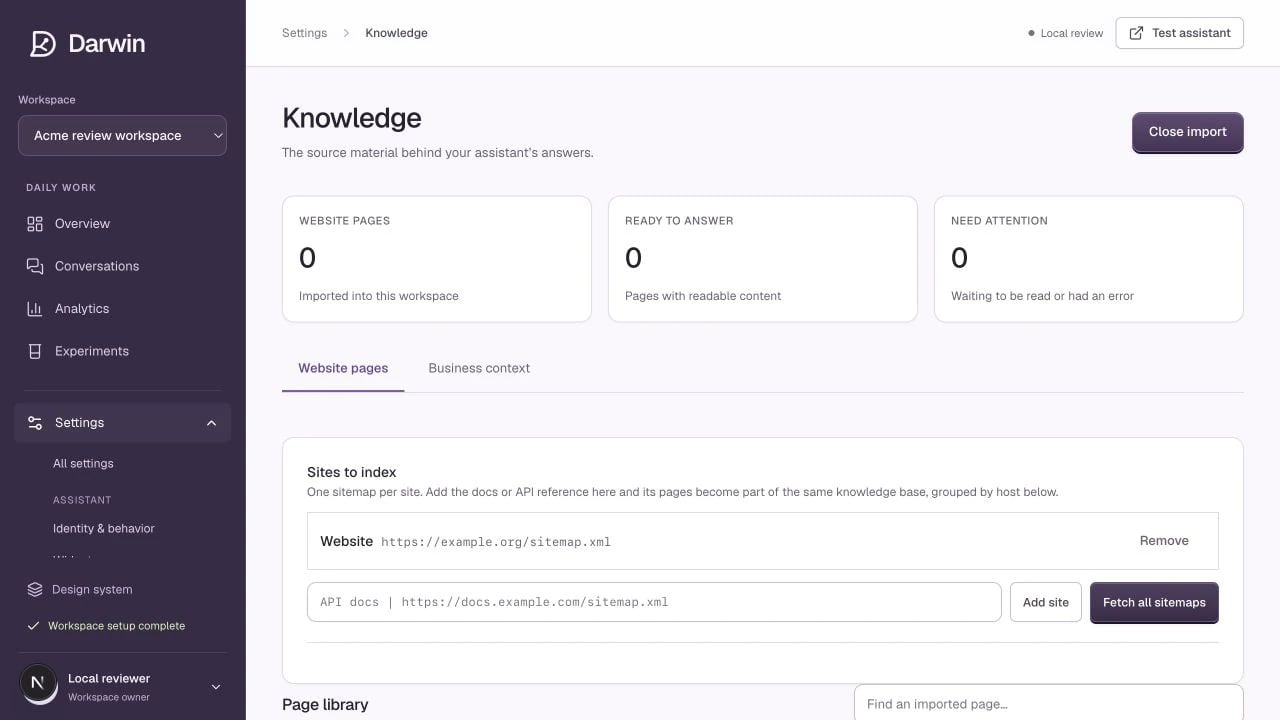
Screenshots use a demonstration workspace. Your data, plan, and activation status may differ.
Darwin answers from readable website content and the business context you provide. A URL in the page library is not enough by itself: Darwin must successfully read the page.
Select **Import from sitemap**. In **Sites to index**, add your website’s sitemap URL. You can add a documentation sitemap too. Give sources clear names so their pages are easy to recognize.
Select **Fetch all sitemaps**, review the groups, and select the relevant pages. Start with product, pricing, implementation, integrations, and frequently asked questions. Select **Import selected pages**.
Run the page-reading action for pending pages, or select **Read page** on an individual row. Wait for **Ready to answer** to increase. **Needs attention** includes pages still waiting or pages that returned an error.
Open a page preview and confirm that the main text is present. Test a question that should be answered by that page in [Test assistant](/assistant/test-assistant).
Starting a new workspace? [Assisted setup](/getting-started/assisted-setup) can find and read your first set of useful pages, then prepare a business and design draft for you to review.
## Keep the library current
Use **Refresh** after a source page changes. Use **Remove** for content that should no longer inform answers. Re-fetch a sitemap to discover new URLs; importing does not mean every page will automatically stay current forever.
Under **Test knowledge & manage search index**, search your imported pages to see what is retrievable. **Update search index** builds semantic search coverage where available. Content without embeddings can still be found by keyword; the coverage message shows the difference.
## Choose useful sources
Prefer current, specific pages. Avoid duplicate campaign pages, retired pricing, private customer records, and pages that only display useful content after login. If information cannot be read from a public page, add a concise explanation in [Business context](/assistant/business-context).
Knowledge pages and optimized pages are different. Your plan’s optimized-page allowance governs opening experiments, not a promise that each imported page is already under test.