> ## Documentation Index
> Fetch the complete documentation index at: https://docs.meetdarwin.ai/llms.txt
> Use this file to discover all available pages before exploring further.
# Add chat buttons to your website
> Agent Studio → Buttons: make buttons for your pages, like Book a demo or Talk to sales, that open Darwin's chat and start the conversation. Copy the code and paste it on your site.
A chat button sits on your own page, like a **Book a demo** button in your hero. When a visitor clicks it, Darwin's chat opens right there and the conversation starts, so they never leave the page.
Open **Agent Studio → Buttons**. Pick a starting point, such as **Book a demo** (1), or select **Add button** (2) for a blank one.
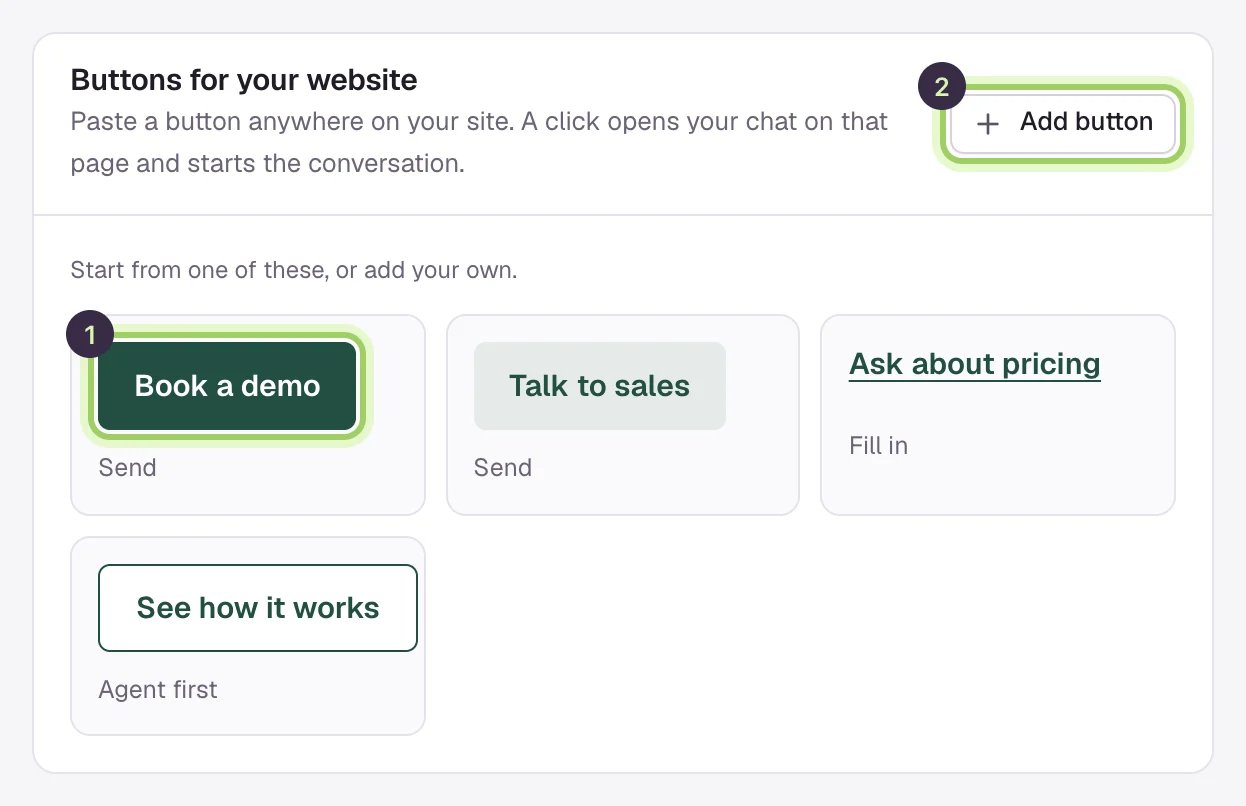 **Button label** is what visitors read on the button. **Message sent as the visitor** is what the chat says for them when they click.
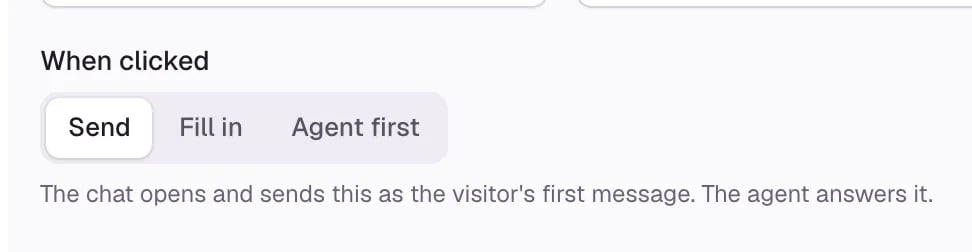
 Under **When clicked**:
* **Send** sends the message as the visitor's first message, and the agent answers it.
* **Fill in** types the message into the chat box, for the visitor to send or change.
* **Agent first** has the agent speak first. Use the message to tell the agent what the visitor wants; the visitor doesn't see it.
Under **When clicked**:
* **Send** sends the message as the visitor's first message, and the agent answers it.
* **Fill in** types the message into the chat box, for the visitor to send or change.
* **Agent first** has the agent speak first. Use the message to tell the agent what the visitor wants; the visitor doesn't see it.
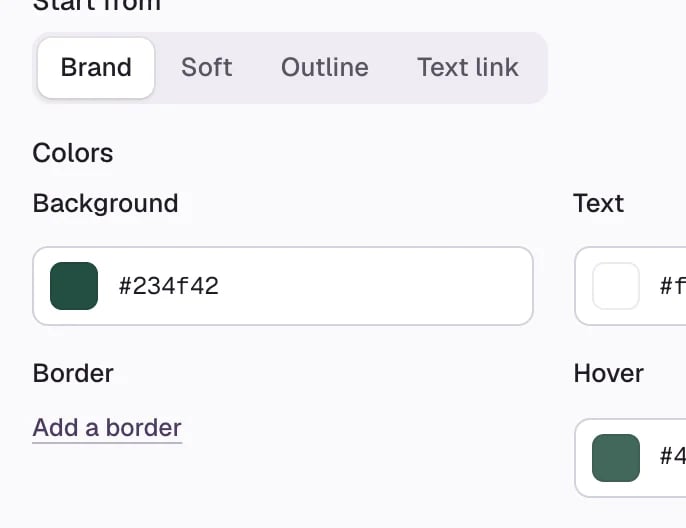
 Under **Start from**, choose **Brand**, **Soft**, **Outline** or **Text link**. Buttons take their colors from your chat; change any color under **Colors**.
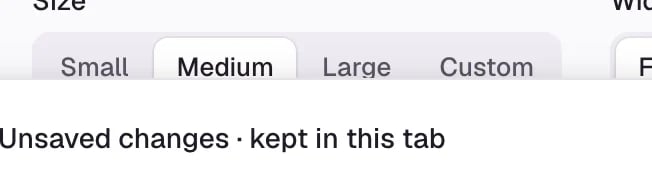
 Then set the **Size**, **Width** and **Corners**. **Full width** fills the space you paste the button into.
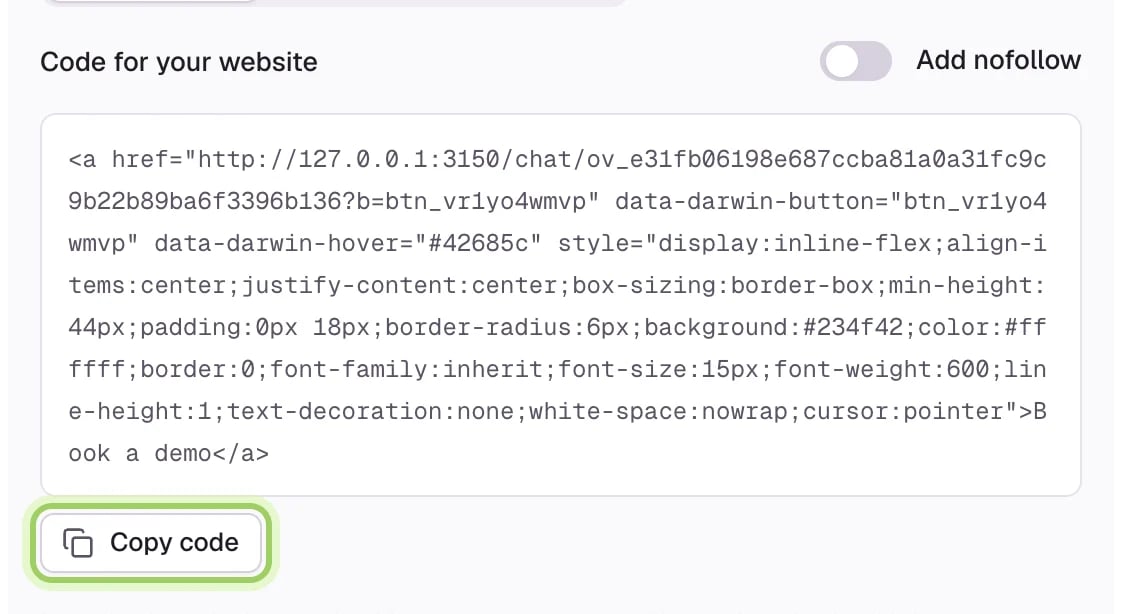
 Select **Copy code**. Paste it where the button should appear, on any page that has your Darwin chat. If the chat can't load, the button opens the same chat on a Darwin page instead. Turn on **Add nofollow** if your site needs it.
 Select **Save changes**. Use **Try it** next to a button to see what a click does in the preview.
 ## Good to know
* Pasted buttons pick up a new message or click behavior as soon as you save. A new label or look needs the new code pasted over the old.
* If you delete a button, copies already on your site still open the chat but no longer start the conversation.
* The chat must be installed on the page. See [Install the chat on your website](/installation/install-widget).
Buttons start from your chat's colors.
See the conversations your buttons start.
This documentation is built and hosted on [Mintlify](https://mintlify.com), a developer documentation platform.
## Good to know
* Pasted buttons pick up a new message or click behavior as soon as you save. A new label or look needs the new code pasted over the old.
* If you delete a button, copies already on your site still open the chat but no longer start the conversation.
* The chat must be installed on the page. See [Install the chat on your website](/installation/install-widget).
Buttons start from your chat's colors.
See the conversations your buttons start.
This documentation is built and hosted on [Mintlify](https://mintlify.com), a developer documentation platform.