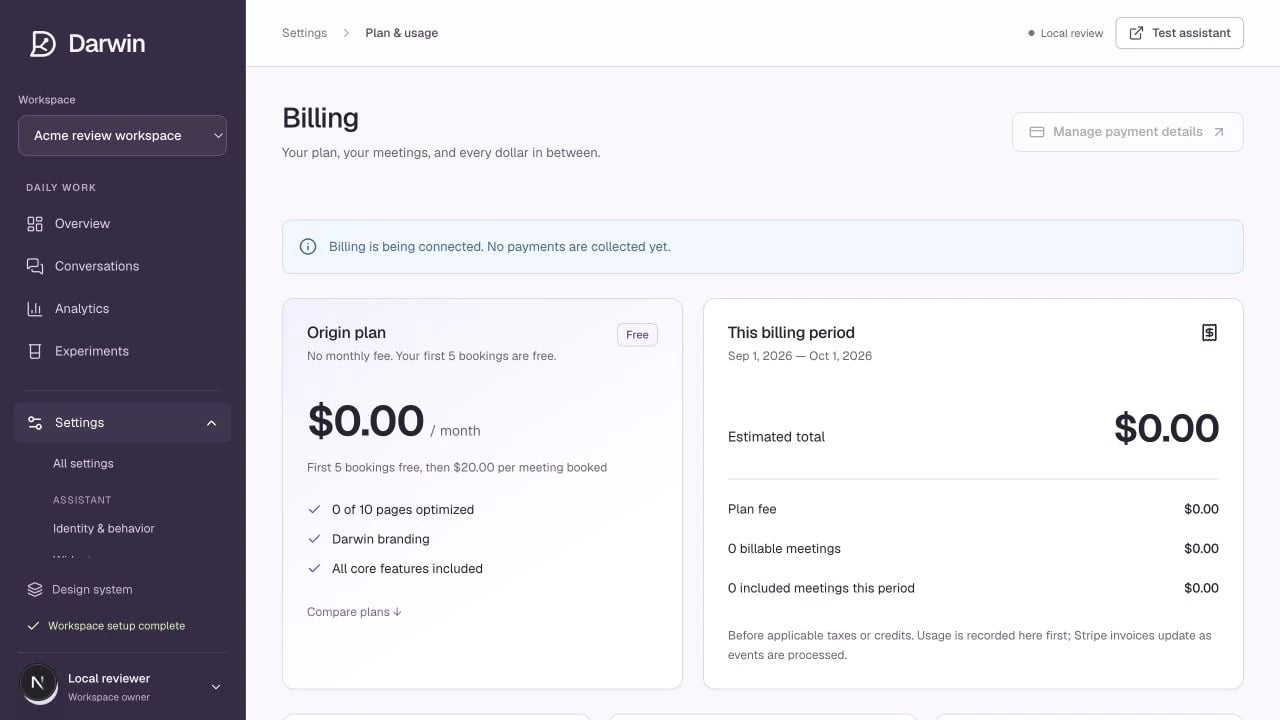
Screenshots use a demonstration workspace. Your data, plan, and activation status may differ.
Only a workspace owner can manage billing. Make sure you have selected the organization whose subscription you want to change. ## Update your card or billing details Select **Manage payment details** to open the secure billing portal. Update the available payment and billing fields, then return to Darwin. If a payment needs attention, resolve it here rather than creating another account. ## Change plans 1. Open **Compare plans** and choose monthly or annual billing where applicable. 2. Select the desired plan. 3. Review the price, included bookings, optimization allowance, and effective date. 4. Confirm **Schedule plan change** for an existing subscription, or complete secure checkout when no subscription is active. Existing subscriptions change **at renewal**. The current pricing and allowances remain in place until the displayed date. Choosing a higher plan does not immediately increase the current period’s optimization limit. ## Cancel or resume renewal Use **Cancel renewal** to stop the subscription renewing at the displayed end date. Your existing plan remains active through that date. **Resume renewal** reverses a scheduled cancellation before it takes effect. Canceling renewal does not erase recorded usage, refund the current period automatically, or remove an embed from your website. Review any outstanding invoices and [remove the widget](/help/maintenance) if you intend to stop using it. ## View invoices The invoices table shows available invoices and their status. Use the invoice link or download action for the official billing document. If there are no invoices yet, billing may not have started or processing may still be underway.